
The 12 Best eLearning Content Creation Tools for 2026

Building great online courses starts with the right tools. The challenge isn’t a lack of options, it’s finding the perfect fit for your specific project, budget, and technical skills.
A simple video editor might be perfect for one creator, while a corporate instructional designer needs a robust suite with advanced quizzing and SCORM export capabilities. This is where many creators get stuck, spending hours researching instead of building.
My goal with this guide is to cut through that noise. I’ve personally tested and evaluated the top elearning content creation tools to give you a clear, practical breakdown of what works best and why.
This isn’t just a list of features. For each tool, you’ll find:
- Who it’s really for: We identify the ideal user, from solo entrepreneurs to large L&D teams.
- Core strengths and weaknesses: An honest look at what each platform excels at and where it falls short.
- Practical use cases: Real-world examples of how you can use the tool to create specific types of learning content.
- Pricing and key integrations: Straightforward information to help you make a quick decision.
You’ll get screenshots, direct links, and actionable insights to help you confidently select the right software. Let’s find the tools that will bring your course vision to life.
1. Articulate 360
Articulate 360 is an absolute powerhouse in the world of e-learning content creation tools. If you’re a serious instructional designer or part of a corporate training team, this suite is likely already on your radar, and for good reason. It’s a comprehensive package designed to handle nearly any e-learning project you can imagine.
The suite’s core components are Storyline 360 and Rise 360. Storyline is a robust, desktop-based application for creating highly customized, slide-based courses with complex interactions and branching scenarios. Think of it as PowerPoint on steroids, specifically for e-learning.
In contrast, Rise 360 is a web-based tool for building beautiful, fully-responsive courses very quickly using pre-built blocks. This combination makes Articulate 360 incredibly versatile for different project needs.
Best For
Articulate 360 excels for corporate L&D teams and professional instructional designers who need to create everything from simple, responsive courses to complex, simulation-based training. It’s the go-to for developing polished, SCORM-compliant content destined for a Learning Management System (LMS).
Pricing
Articulate 360 is a premium subscription service. The plan for teams starts at $1,399 per user, per year, with discounts for volume. A personal plan is available for $1,099 per year. They also offer a 30-day free trial, which I highly recommend for getting a feel for the entire ecosystem.
Pros & Cons
| Pros | Cons |
|---|---|
| Comprehensive suite with tools for every need (Storyline, Rise, Review 360). | Steep learning curve for Storyline 360’s advanced features. |
| Powerful customization in Storyline 360 for complex interactions. | High price point, making it an investment for freelancers or small teams. |
| Rapid development with Rise 360 for beautiful, responsive courses. | Storyline 360 is Windows-only, requiring a virtual machine for Mac users. |
| Excellent collaboration features through Review 360 for stakeholder feedback. |
My Take
I’ve used Articulate 360 for years, and it remains a staple for complex projects. Storyline gives me the granular control I need for scenario-based training, while Rise is my secret weapon for creating quick, mobile-friendly modules that look fantastic.
The biggest hurdle is the initial investment and the time it takes to master Storyline. However, if your goal is to produce top-tier, professional e-learning content, Articulate 360 is the industry standard.
2. Adobe Captivate
Adobe Captivate is a long-standing and powerful player among e-learning content creation tools, particularly known for its prowess in creating software simulations. As part of the Adobe creative ecosystem, it’s a natural choice for teams already invested in Adobe products. The latest version introduces a modern, streamlined interface and generative AI features, aiming to simplify and accelerate the course creation process.
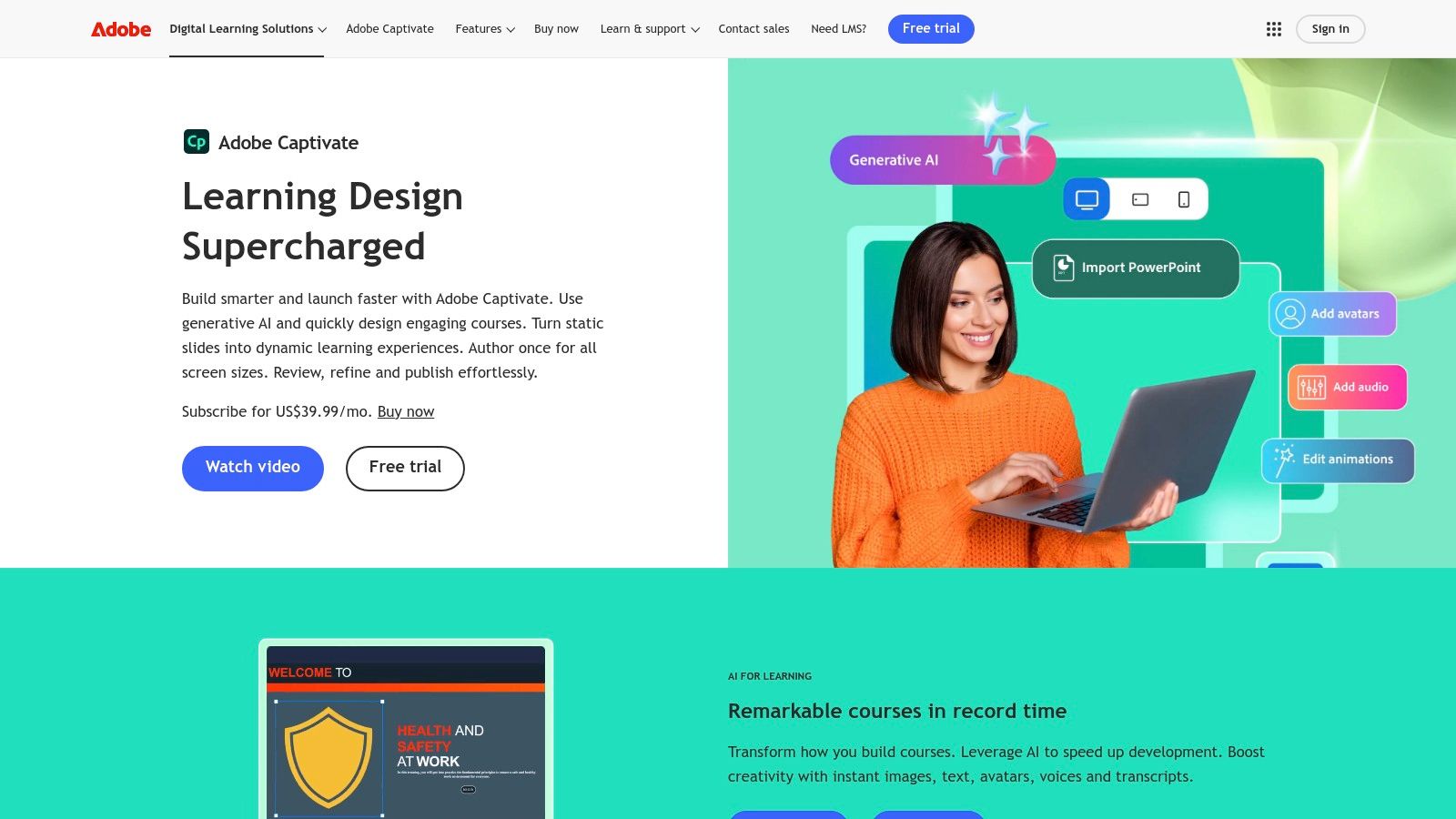
It truly shines when you need to teach someone how to use a piece of software. Captivate can record your on-screen actions and automatically convert them into an interactive tutorial, complete with click boxes and text captions.
This makes it a go-to tool for application training, and its responsive design capabilities ensure that these simulations work across various devices. Its ability to create high-quality, SCORM-compliant content also makes it a strong choice when choosing a learning management system.
Best For
Captivate is ideal for instructional designers and corporate trainers who need to create detailed software simulations and systems training. It’s also a solid choice for organizations that are already heavily using the Adobe Creative Cloud, as it allows for seamless asset integration.
Pricing
Adobe Captivate is available through a subscription model. The individual plan is priced at $33.99 per month. They also offer plans for businesses and for students and teachers, so it’s worth checking their site for the latest team and educational pricing. A free 7-day trial is available.
Pros & Cons
| Pros | Cons |
|---|---|
| Powerful simulation capabilities for creating show-me, try-it, test-me tutorials. | Learning curve can be steep for mastering its more complex features. |
| Excellent integration with other Adobe products like Photoshop and Illustrator. | Feature differences between the new and “Classic” versions can be confusing. |
| Strong responsive design features for creating content that works on any device. | The interface can feel less intuitive than some newer, web-based tools. |
| Advanced quizzing and assessment options. |
My Take
I turn to Adobe Captivate whenever a project requires a heavy focus on software simulation. Its screen recording and automatic step-by-step slide generation is a massive time-saver.
While the learning curve is real, especially if you’re coming from a simpler tool, the power you get for creating interactive, simulation-based training is hard to beat. The integration with Adobe fonts and assets is also a big plus for maintaining brand consistency. If software training is your bread and butter, Captivate is an essential tool to have in your arsenal.
Website: adobe.com/products/captivate.html
3. iSpring Suite
If your team lives and breathes PowerPoint, iSpring Suite is one of the most intuitive elearning content creation tools you can adopt. It’s a powerful PowerPoint add-in that transforms familiar slides into fully-featured e-learning courses. This approach significantly flattens the learning curve, allowing creators to get up and running almost instantly.
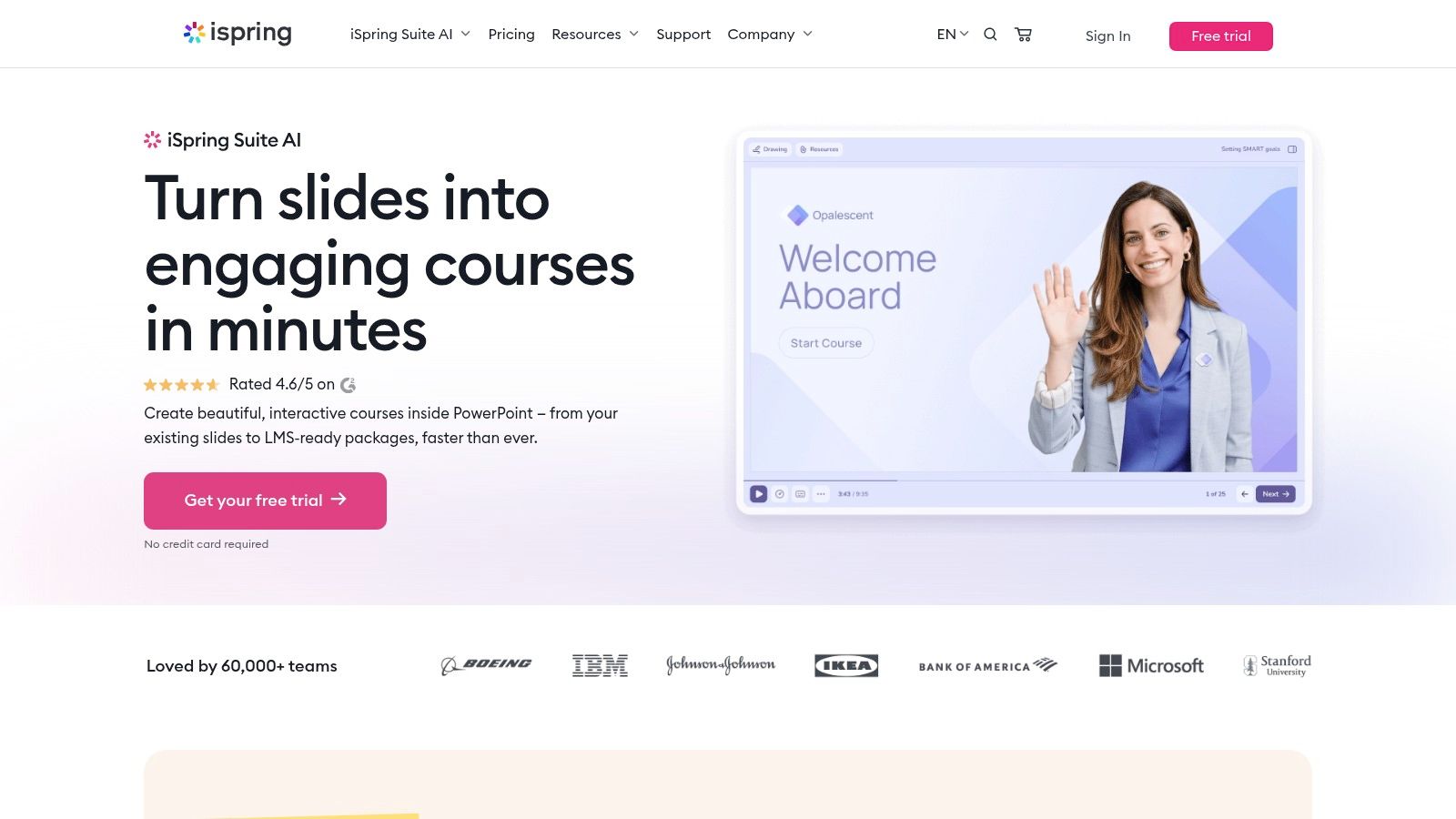
The suite adds a new tab to your PowerPoint ribbon, packed with tools for creating quizzes, dialogue simulations for role-playing, and video lessons. You can then publish your presentation directly to HTML5, or as a SCORM or xAPI package for your LMS, with just a few clicks. The whole process is about rapid development without leaving a familiar environment.
Best For
Corporate trainers and educators who are heavily invested in PowerPoint and need a fast, straightforward way to convert existing presentations into interactive, LMS-ready courses. It’s also great for anyone who values a very short learning curve and reliable customer support.
Pricing
iSpring’s pricing is primarily quote-based now, so you’ll need to contact sales. However, the core iSpring Suite plan previously started around $770 per user, per year. The iSpring Suite Max plan, which includes their cloud collaboration platform (iSpring Space), was around $970 per user, per year. A 14-day free trial is available.
Pros & Cons
| Pros | Cons |
|---|---|
| Very short learning curve for anyone proficient in PowerPoint. | Pricing often requires contacting sales, which can be a slow process. |
| Reliable compatibility and publishing to virtually any LMS. | Tied to the PowerPoint interface, limiting design freedom. |
| Strong customer support and excellent training resources. | Less flexible for extremely complex branching logic than tools like Storyline. |
| Built-in tools for quizzes, dialogue simulations, and video editing. |
My Take
I recommend iSpring to clients who need to empower their subject matter experts to create training without a steep learning curve. It’s an incredibly practical tool.
If you know how to make a good PowerPoint, you already know how to make a good course in iSpring. The publishing is rock-solid, and it just works. While it doesn’t offer the same level of complex customization as Storyline, it excels at making solid, interactive e-learning accessible to everyone.
Website: ispringsolutions.com
4. TechSmith Camtasia
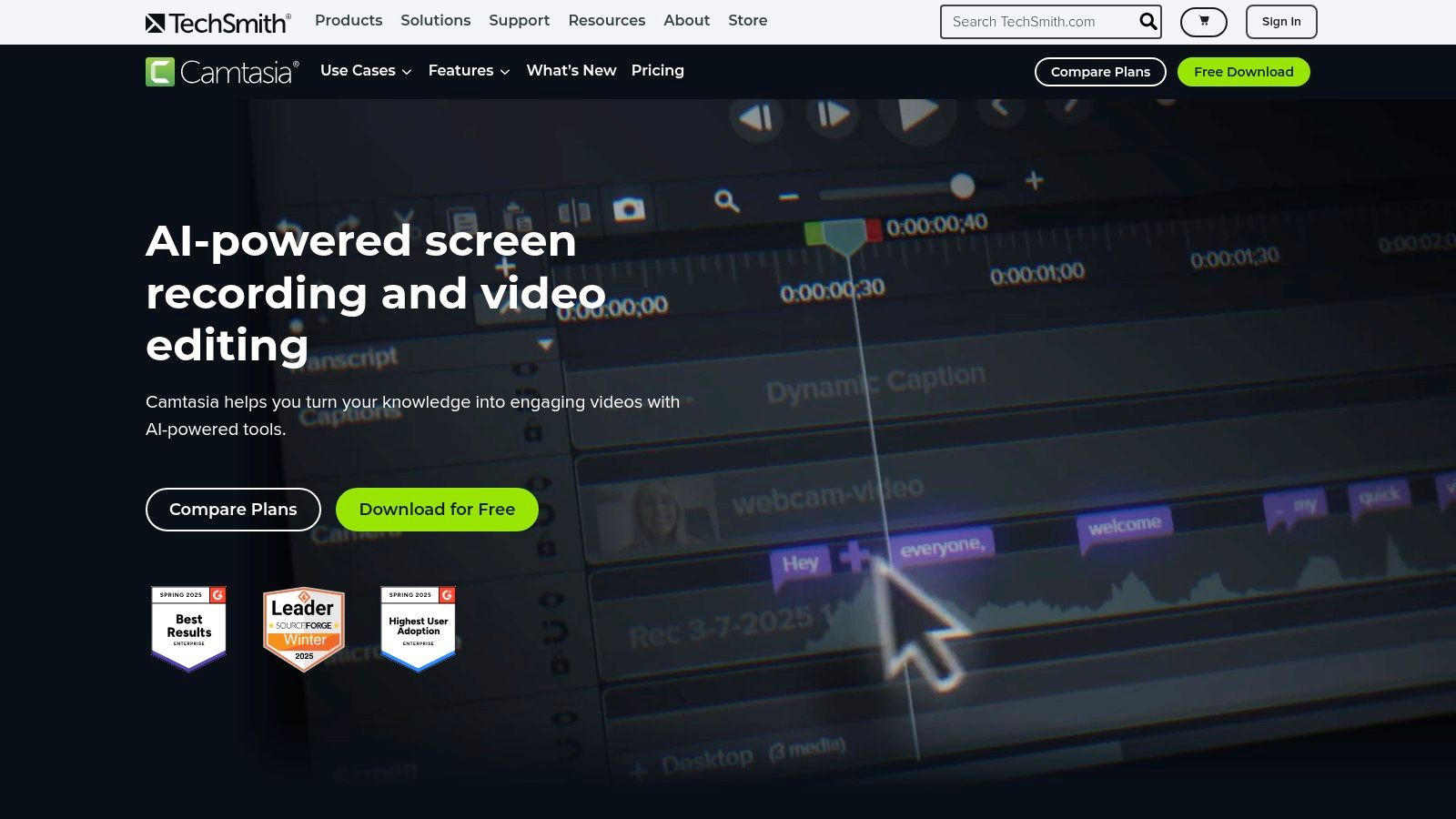
When it comes to creating high-quality screen recordings and video tutorials, TechSmith Camtasia is a name that consistently comes up. It’s a fantastic all-in-one screen recorder and video editor that has carved out a niche as one of the most approachable yet powerful e-learning content creation tools for video. It helps you create professional-looking software demos, training videos, and course content without needing a degree in video production.
Camtasia masterfully combines screen capture with a user-friendly, timeline-based video editor. This allows you to record your screen, webcam, and audio simultaneously, and then easily cut, edit, and enhance the footage. You can add callouts, annotations, and animations to highlight key information, making it perfect for creating clear, step-by-step instructional videos that keep learners engaged.
Best For
Camtasia is ideal for course creators, educators, and corporate trainers who need to produce polished software walkthroughs and video tutorials. It’s the perfect tool for anyone who needs robust screen recording and editing capabilities but finds professional video editing software like Adobe Premiere Pro too intimidating.
Pricing
TechSmith offers Camtasia as an annual subscription. The individual plan is priced at $179.88 for the first year. They also provide business and education pricing, with discounts available for volume. A fully-functional 3-day free trial is available to test it out.
Pros & Cons
| Pros | Cons |
|---|---|
| Very approachable for non-video professionals. | Annual subscription costs can add up for large teams. |
| Robust screen recording with strong annotation tools. | Limited advanced compositing/effects compared with pro NLEs. |
| Good cross-platform support (Windows and macOS). |
My Take
I’ve relied on Camtasia for years to create all my software demonstration videos. The interface is intuitive, and the screen recording tools are second to none.
Features like cursor highlighting and easy annotations save me a ton of time in post-production. While it doesn’t have the deep special effects of a professional video editor, it does everything I need for creating clear, effective training videos, and it does it exceptionally well.
Website: https://www.techsmith.com/camtasia.html
5. Vyond
Sometimes, static slides and text just don’t cut it. Vyond is a web-based platform that lets anyone create professional-quality animated videos, making it one of the most engaging elearning content creation tools for explainer videos, microlearning, and scenario-based training.
You don’t need any animation experience to get started. Instead, you build videos scene-by-scene using a vast library of characters, props, and templates.
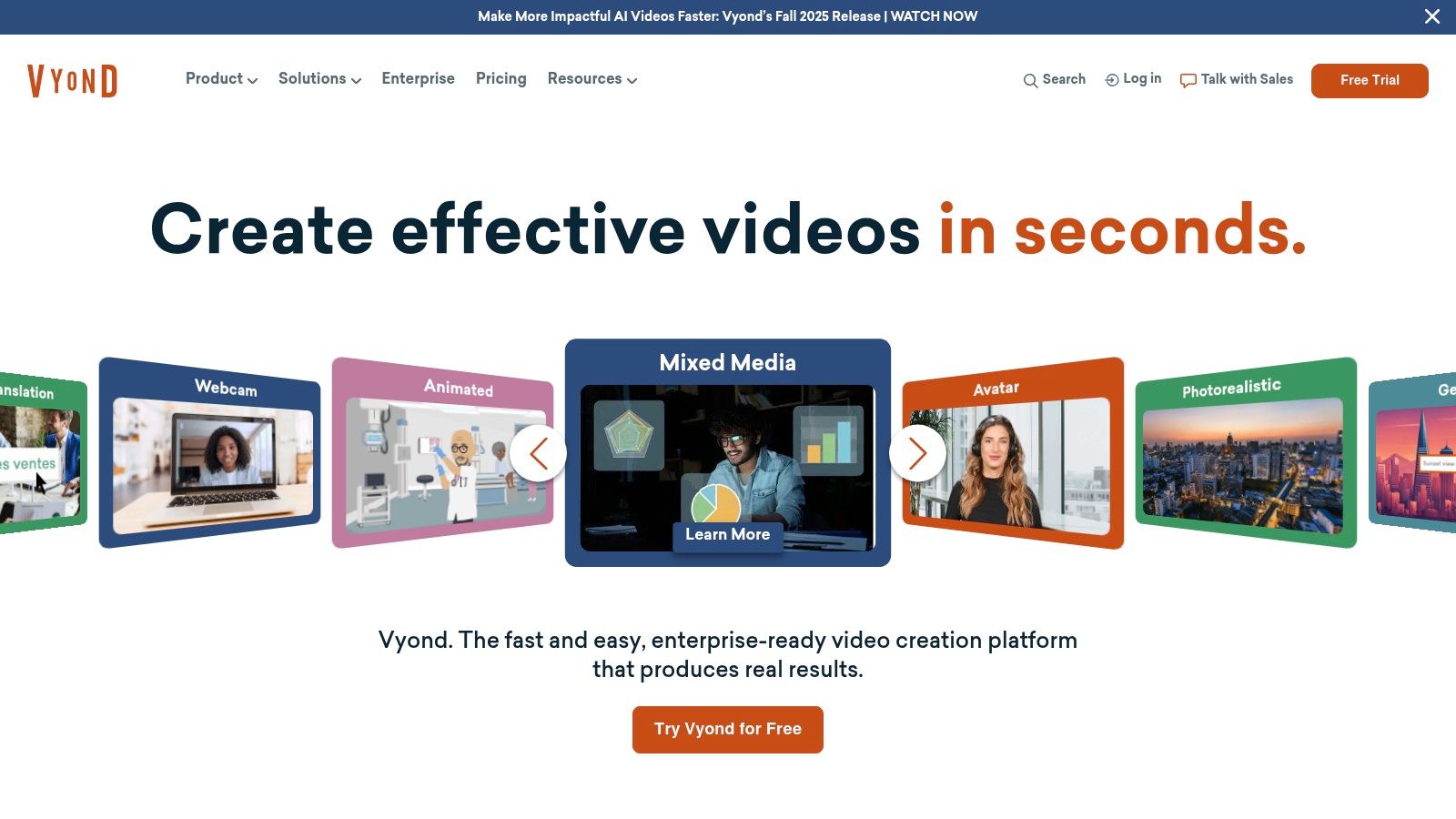
The platform is designed for speed and ease of use. You can customize characters to match your brand or learner personas, and its AI-powered features, like text-to-video and instant voiceovers, dramatically speed up the production process. This makes it an invaluable tool for teams that need to produce polished animated content quickly without the budget for a dedicated animator.
Best For
Instructional designers and corporate trainers who want to create engaging animated videos for onboarding, software tutorials, or soft-skills training. It’s perfect for adding a narrative element to your courses and breaking up text-heavy modules with dynamic, visually appealing content.
Pricing
Vyond offers several subscription tiers. The Essential plan starts at $49/month, the Premium at $89/month, and the Professional plan, which includes more collaboration and branding features, is $179/month (billed annually). They also offer enterprise-level pricing for larger teams.
Pros & Cons
| Pros | Cons |
|---|---|
| Fast production for non-animators to create professional videos. | Higher cost at the professional and enterprise tiers. |
| Excellent collaboration and brand control features for teams. | Animation style can have a recognizable “Vyond look.” |
| AI-powered tools and a large asset library speed up workflow. | Limited customization compared to traditional animation software. |
| Strong voiceover and language translation options. |
My Take
I use Vyond when I need to explain a complex process or tell a story that would be boring in a slide deck. The ability to quickly create a character-driven scenario is a game-changer for engagement.
While it’s true that the videos can sometimes have a distinct “Vyond” feel, the speed and accessibility it offers far outweigh this minor drawback. For creating short, impactful animated videos for any course, Vyond is a fantastic and fun tool to have in your arsenal.
Website: Vyond.com
6. Synthesia
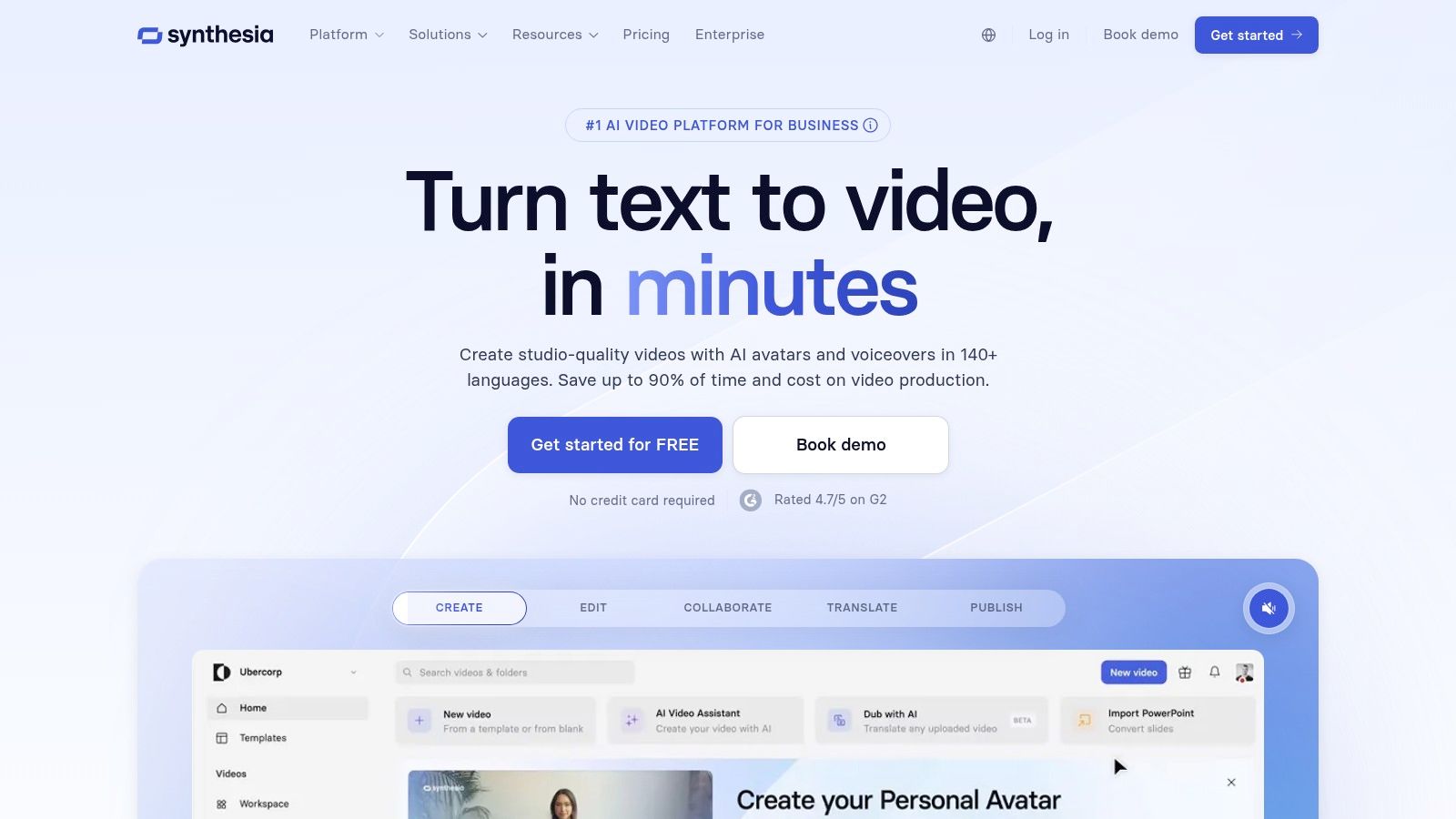
Synthesia is a fascinating entry in the list of elearning content creation tools because it tackles video production from a completely different angle: artificial intelligence. Instead of setting up cameras, mics, and booking studio time, Synthesia allows you to generate professional-looking training videos using AI avatars and voices.
You simply type a script, choose an avatar, and the platform creates a narrated video, making it incredibly fast to produce content.
This tool is a game-changer for creating scalable training, especially for global teams. The ability to generate videos in over 80 languages without hiring voice actors or reshooting footage is a massive advantage. It’s perfect for how-to guides, software walkthroughs, and corporate onboarding modules where consistency and speed are key.
Best For
Synthesia is ideal for corporate training departments and content creators who need to produce large volumes of narrated video content quickly and in multiple languages. It excels for standardized training like compliance, HR policies, and software tutorials where a human touch is less critical than clarity and scale.
Pricing
Synthesia uses a subscription model based on video minutes. The Personal plan is $22 per month (billed annually) for 10 minutes of video. The Enterprise plan is custom-priced and includes more advanced features like custom avatars and premium integrations.
Pros & Cons
| Pros | Cons |
|---|---|
| Extremely fast video production without cameras or voice talent. | AI avatars can feel less personal or authentic than a real person. |
| Scales easily for large catalogs and multi-language rollouts. | Costs can increase significantly with heavy usage due to the credit model. |
| Massive time and cost savings on traditional video shoots. | Limited emotional range in the AI voices and avatars. |
| Simple, web-based interface that is easy for anyone to use. |
My Take
I was initially skeptical of AI video, but Synthesia has won me over for specific use cases. For quick, informational “talking head” style videos, it’s unbelievably efficient.
I’ve used it to create localized versions of a training module, and it saved me days of work. While it won’t replace a real instructor for high-empathy or nuanced topics, it is an incredibly powerful tool for scaling video-based learning content without a massive production budget.
Website: https://www.synthesia.io
7. Descript
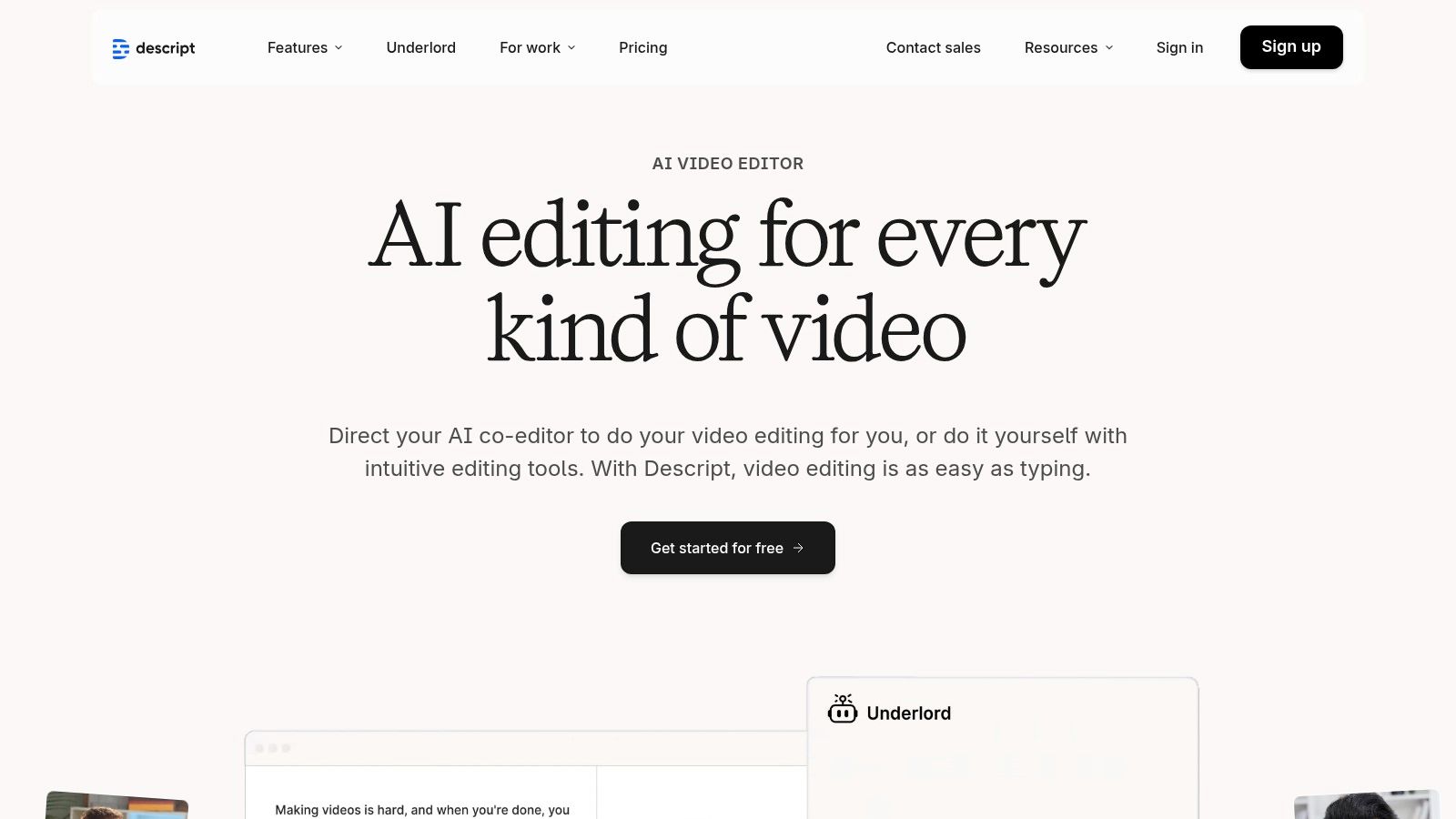
Descript has completely changed the game for anyone who creates video or audio-based e-learning content. It’s an AI-powered editor that works like a word document. Instead of wrestling with complex timelines, you simply edit the auto-generated transcript, and Descript edits the video or audio to match. This text-based approach makes correcting mistakes or repurposing content incredibly fast.
It’s one of the most innovative e-learning content creation tools for instructors who rely heavily on screen recordings, talking-head videos, or podcasts for their lessons. The built-in screen recorder, AI-powered “Studio Sound” feature, and the ability to remove filler words like “um” and “uh” automatically are huge time-savers.
Best For
Descript is perfect for course creators and instructional designers who need to quickly edit spoken-word video and audio. It excels at producing polished microlearning clips, editing lecture recordings, and repurposing long-form content into smaller, shareable assets for social media or course promos.
Pricing
Descript offers a free plan with limited features. Paid plans start with the Creator tier at $15 per user/month and the Pro tier at $30 per user/month, which includes more transcription hours and advanced AI features. An Enterprise plan is also available with custom pricing.
Pros & Cons
| Pros | Cons |
|---|---|
| Very fast workflow for lesson edits and corrections by editing text. | Combined browser + app workflow can be confusing for new users. |
| Great for microlearning and repurposing content into short clips. | AI credit and media hour quotas on paid plans require monitoring. |
| Powerful AI features like automatic filler word removal and studio-quality sound. | Not a full-fledged video editor for complex graphical animations. |
| Built-in screen recorder simplifies the content creation process from start to finish. |
My Take
I use Descript almost daily to edit my course videos and podcast episodes. The ability to just delete a sentence from the transcript and have it vanish from the video is magical. It has saved me countless hours.
While it’s not a replacement for a tool like Adobe Premiere for highly cinematic edits, it is my go-to for 95% of my e-learning video production. It makes video editing accessible to everyone.
Website: descript.com
8. Genially
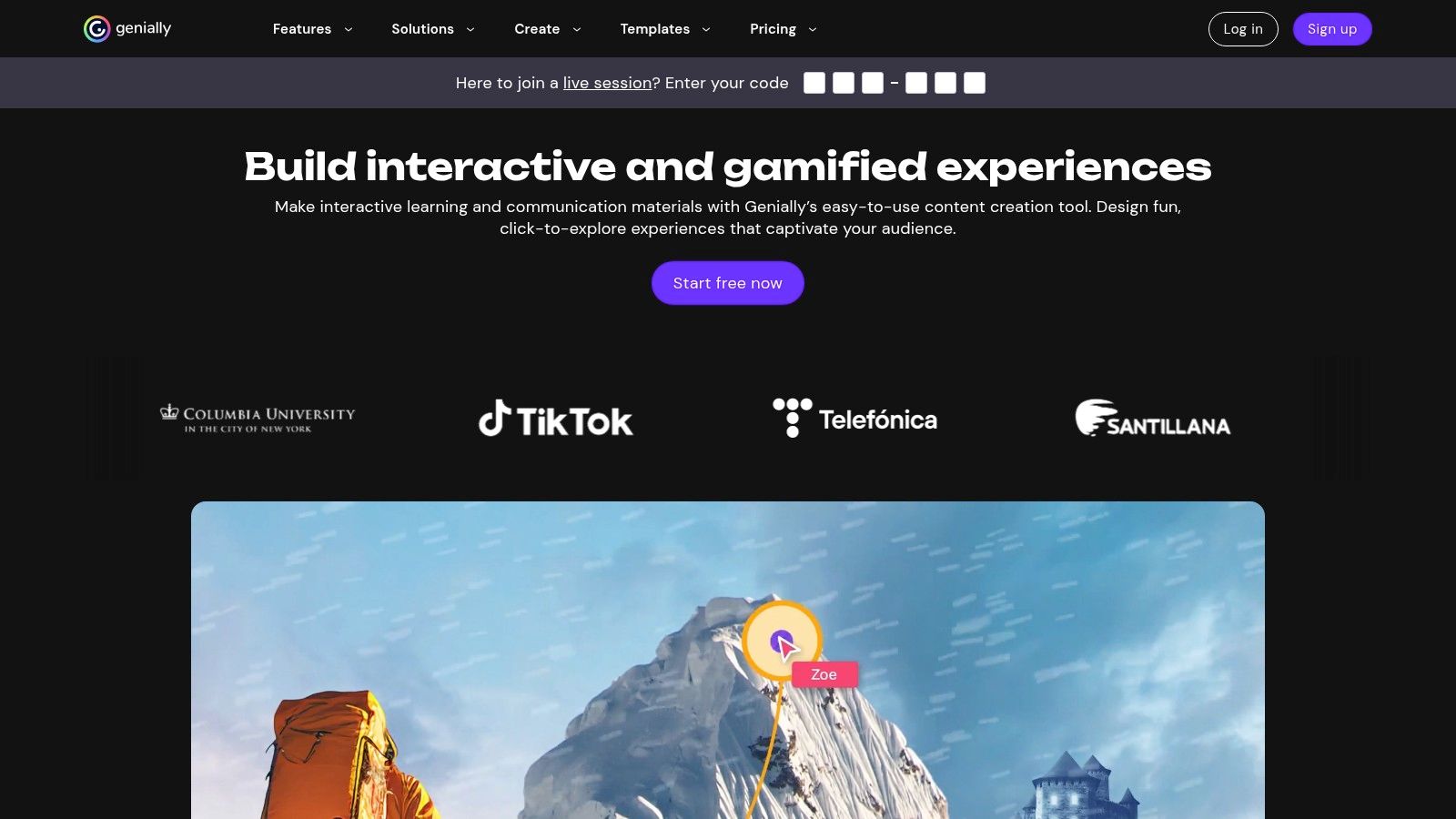
Genially is all about making learning content that pops. Instead of static slides, it helps you build interactive presentations, infographics, and gamified quizzes that grab a learner’s attention. Think of it as a creative playground for producing visually rich microlearning content, where users can click, explore, and engage directly with the material on screen.
It’s a web-based tool that excels at adding layers of interactivity, animations, and embeds without needing any code. This makes it one of the more accessible yet powerful e-learning content creation tools for educators and designers who want to create a more dynamic, less passive learning experience.
Best For
Genially is perfect for educators, marketers, and instructional designers who need to create highly visual and interactive micro-content quickly. It’s a fantastic choice for making engaging infographics, interactive images, simple branching scenarios, and gamified quizzes that stand out.
Pricing
Genially offers a generous Free plan with unlimited creations. Paid plans unlock more features: the Pro plan is $9.90/month, the Master plan is $39.90/month, and the Team plan is $79.90/month (all billed annually). SCORM export is available on the Master and Team plans.
Pros & Cons
| Pros | Cons |
|---|---|
| Excellent for visually rich and interactive micro-content. | SCORM export and advanced analytics require higher paid tiers. |
| Easy to learn with a huge template library and a free plan to start. | Large or heavy projects can become complex to manage within the editor. |
| Strong gamification features to boost learner engagement. | Limited functionality for complex, multi-module course development. |
My Take
I use Genially when I need to create something fast, beautiful, and interactive. It’s my go-to for one-off learning objects like an interactive infographic or a quick knowledge-check game. The template library is a lifesaver for getting started.
While it isn’t designed to build a full, multi-hour course like Storyline, it shines for creating those “wow” moments that make learning stick. Its features are a great way to add fun to your lessons, and you can learn a lot more about using gamification in e-learning to see how it can help.
Website: genially.com
9. H5P.com
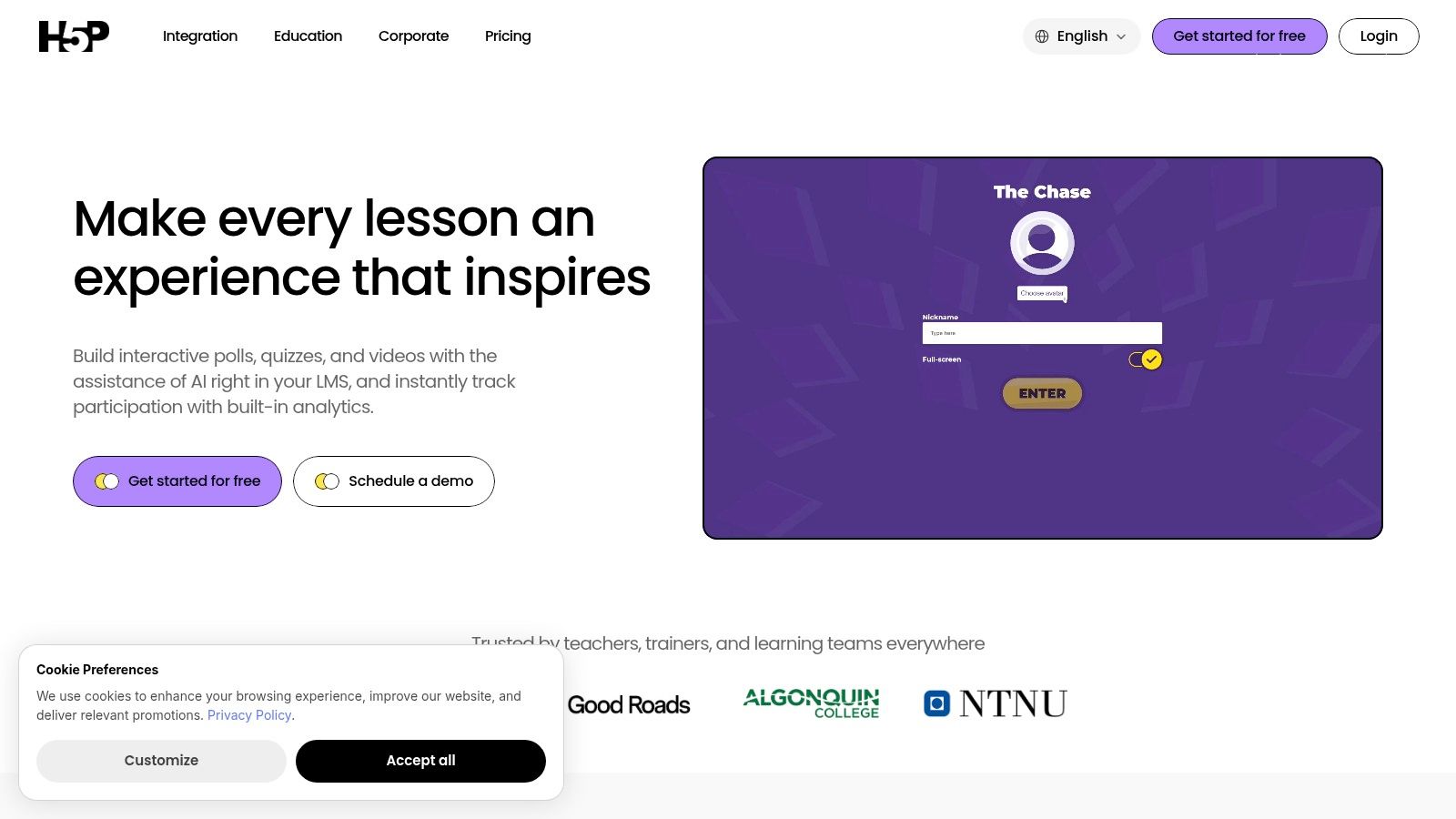
H5P.com is the go-to platform if you want to sprinkle interactive magic into your existing content. It’s not a standalone course authoring tool in the traditional sense. Instead, it’s a powerful service that lets you create and embed over 50 different types of interactive content, like branching scenarios, interactive videos, and complex quizzes, directly into your website or LMS.
Its strength lies in its deep integration with platforms like Moodle, Canvas, and WordPress through LTI, making it a favorite in higher education. This integration allows for seamless gradebook passback, a huge win for instructors.
The platform also has some impressive AI features, such as the ability to generate interactive modules from text or video content. To delve deeper into this innovative area, read this comprehensive guide on AI video generator technology.
Best For
Educators, particularly in higher education and K-12, who need to add engaging, gradable activities directly into their Learning Management System. It’s also great for corporate trainers wanting to make existing training materials more interactive without a complete overhaul.
Pricing
H5P.com is designed for organizations. Pricing starts at $66 per month ($790 billed annually) for 1 author and up to 300 content consumers. Larger plans scale up based on the number of authors and users. A 30-day free trial is available to test the full feature set.
Pros & Cons
| Pros | Cons |
|---|---|
| Vast library of over 50 interactive content types to choose from. | Pricing is not ideal for individual freelancers or solo creators. |
| Seamless LTI integration with major LMS platforms for easy embedding and grading. | Lacks a unified course structure; it’s a collection of individual activities. |
| Strong community support and a hub for sharing and reusing content. | Advanced reporting often depends on your LMS’s capabilities. |
| Open-source foundation (H5P.org) provides flexibility. |
My Take
I love H5P for its simplicity and laser focus on interactivity. When I need to quickly create a knowledge check, an interactive timeline, or an image hotspot to embed in a WordPress lesson, H5P.com is my first stop. It’s one of the best elearning content creation tools for enhancing existing content.
You can’t build a full, standalone SCORM course with it, but its power to make any webpage or LMS lesson more engaging is undeniable.
Website: H5P.com
10. ELB Learning Lectora
ELB Learning Lectora is a long-standing veteran among e-learning content creation tools, known for its sheer power and flexibility. It offers both a desktop version (Lectora Desktop) and a cloud-based option (Lectora Online), catering to different team workflows. This tool truly shines when you need to build highly customized, accessible, and compliant e-learning from the ground up.
What sets Lectora apart is its unwavering commitment to accessibility standards, like WCAG, and its robust handling of variables and conditional actions. While other tools offer templates, Lectora gives you a blank canvas to build complex interactions and simulations with granular control. This makes it a favorite for government, healthcare, and other industries where strict compliance is non-negotiable.
Best For
Lectora is ideal for experienced instructional designers and development teams who require deep customization, advanced interactive capabilities, and ironclad accessibility compliance. It’s also great for global teams needing to create and manage multilingual course versions efficiently.
Pricing
Lectora is sold as part of the ELB Learning Authoring Suites. The Gold Suite, which includes Lectora, starts at $1,399 per user, per year. This often bundles access to asset libraries and other tools like CenarioVR. A free trial is available to test the software.
Pros & Cons
| Pros | Cons |
|---|---|
| Exceptional accessibility features and WCAG compliance support. | User interface can feel dated compared to modern, web-first tools. |
| Powerful and flexible for creating complex, custom interactions. | Steeper learning curve than rapid authoring tools like Rise 360. |
| Offers both desktop and online versions to suit different workflows. | Higher price point might be a barrier for individuals or small teams. |
| Strong collaboration with the integrated ReviewLink feedback tool. |
My Take
I turn to Lectora when a project demands serious accessibility or complex logic that other tools can’t handle. It’s not the fastest tool for a simple project, but it’s a lifesaver for intricate, compliance-heavy courses. The ability to switch between desktop and online is a huge plus for team flexibility.
When working with video-heavy content, integrating the best video to text converter tools can also significantly boost accessibility and repurposing efforts within your Lectora projects. If you need power and control above all else, Lectora is a top-tier choice.
Website: elblearning.com/authoring-tools/lectora
11. Intellum Evolve Authoring
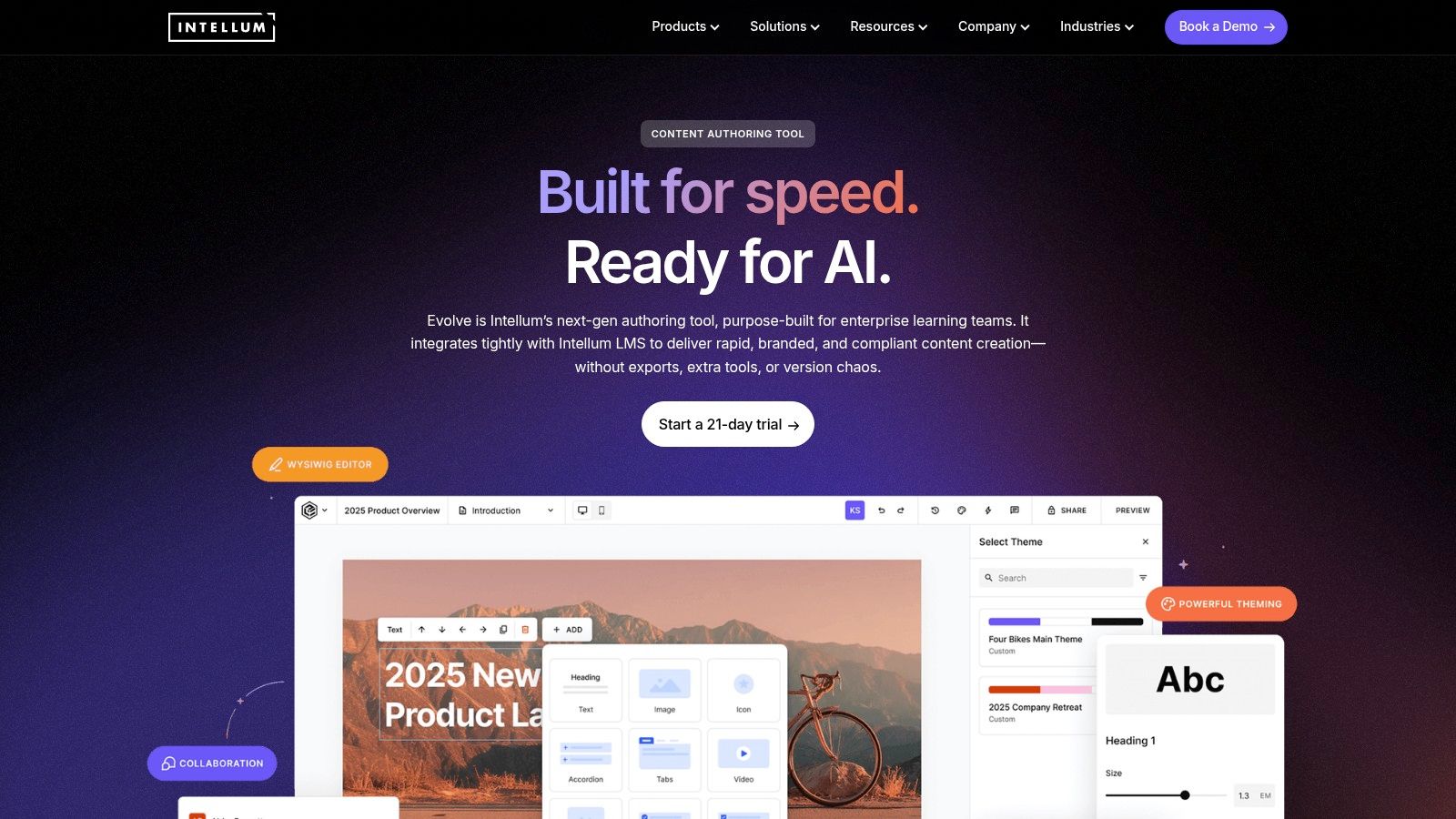
Intellum Evolve Authoring is a browser-based tool designed for rapid, responsive course building, especially for teams already invested in the Intellum ecosystem. Instead of a traditional slide-based approach, it uses a component-style method where you stack and customize pre-built blocks. This makes it a powerful contender among elearning content creation tools for organizations that need speed and scalability.
What truly sets it apart is its native integration with the Intellum Platform. This direct connection eliminates the need for exporting SCORM packages and uploading them to an LMS, streamlining version control and enabling deeper analytics. It’s built from the ground up for enterprise-level collaboration.
Best For
Intellum Evolve is ideal for large L&D teams and enterprises already using the Intellum Platform. Its main strength lies in creating polished, responsive content quickly while maintaining tight control over branding, versioning, and analytics within a single, unified system.
Pricing
Pricing information for Evolve is not publicly listed and is typically bundled with the broader Intellum Platform subscription. You will need to contact their sales team for a custom quote based on your organization’s specific needs.
Pros & Cons
| Pros | Cons |
|---|---|
| Very fast authoring with enterprise collaboration workflows. | Best value when used within the Intellum ecosystem. |
| Tight platform integration for seamless analytics and version control. | Pricing isn’t public, requiring a custom enterprise quote. |
| Scales well for larger L&D teams with robust roles and permissions. |
My Take
I see Intellum Evolve as a “walled garden” tool, and that’s not a bad thing if you’re already living in that garden. The convenience of authoring, deploying, and analyzing content without ever leaving one platform is a huge efficiency win for a corporate team.
If you aren’t an Intellum customer, it’s not the right fit. But if you are, it’s a no-brainer for simplifying your entire content lifecycle.
Website: https://www.intellum.com/platform/evolve
12. dominKnow | ONE
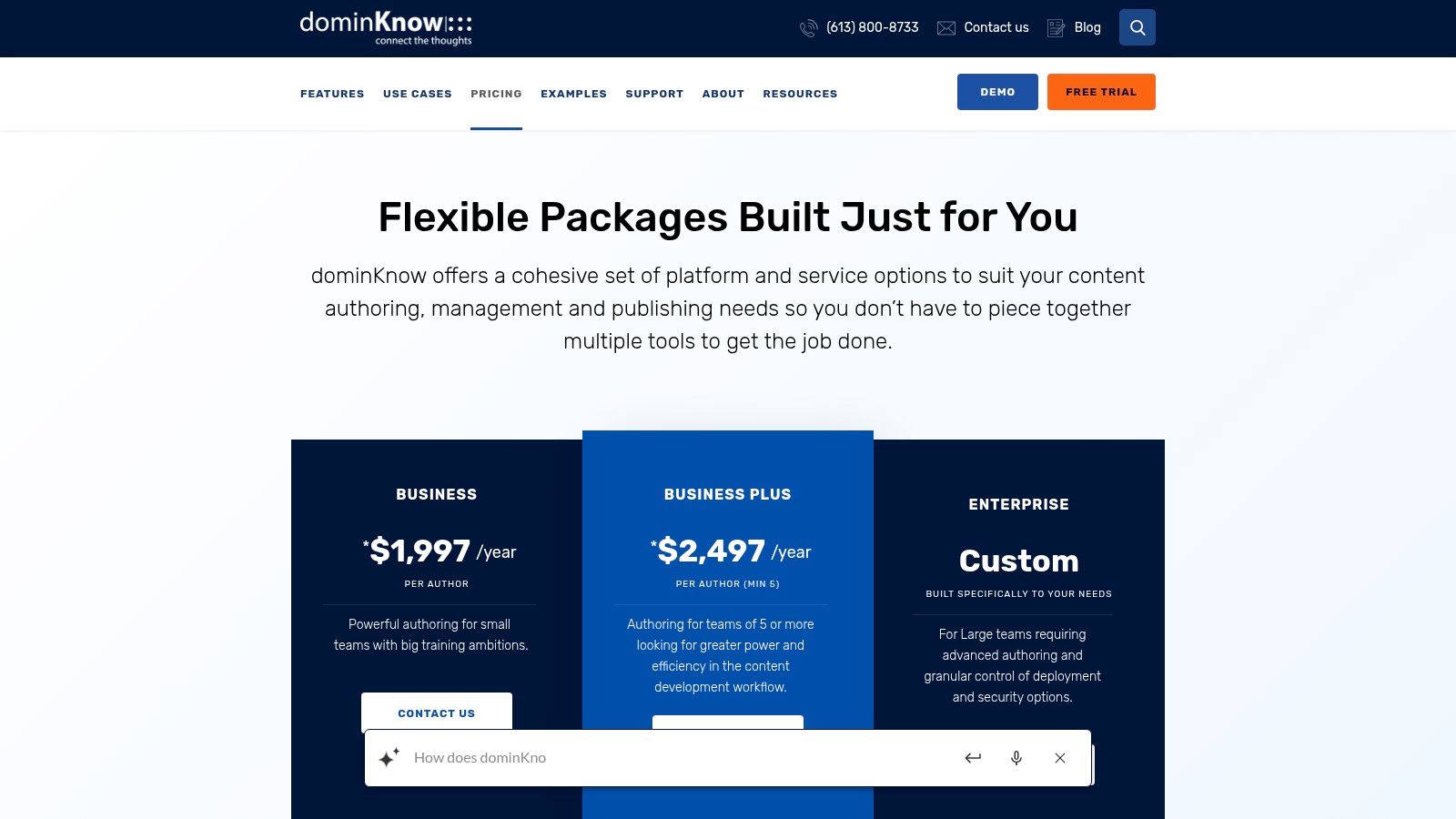
dominKnow | ONE is an enterprise-grade e-learning content creation tool that functions more like a full Learning Content Management System (LCMS). It’s built for large organizations that need serious control over their content, including versioning, user roles, and translation management. It’s a centralized hub for creating, managing, and reusing learning assets at scale.
Its key differentiator is its powerful single-source authoring capability. You can create content once and publish it in various formats, or easily reuse components across different courses. This is a massive time-saver for teams maintaining a large library of training materials, especially when updates are required. It also has strong features for creating software simulations and fully responsive courses.
Best For
This platform is ideal for large corporate L&D departments and global enterprises that require structured governance, collaborative workflows, and extensive content reuse. If your team manages content in multiple languages and needs robust version control, dominKnow | ONE is built for you.
Pricing
dominKnow | ONE pricing is customized based on team size and needs, typically starting with a minimum of 3 author licenses. You’ll need to contact their sales team for a custom quote, but expect pricing to be in the premium enterprise tier, likely billed annually per author.
Pros & Cons
| Pros | Cons |
|---|---|
| Strong for large teams and structured governance. | More complex than simple, rapid authoring tools. |
| Deep reuse and version control save time at scale. | Higher per-author pricing reflects its enterprise focus. |
| Private cloud and enterprise security options available. | Can be overkill for small teams or individual creators. |
| Excellent for multi-language content management. |
My Take
I see dominKnow | ONE as the solution for when your e-learning operations have outgrown standard authoring tools. The platform is less about creating a single course and more about managing an entire ecosystem of learning content.
The ability to reuse assets and manage translations from a central platform is a game-changer for big companies. It’s a heavier platform with a learning curve, but for the right organization, the efficiency gains and governance it provides are well worth the investment.
Website: https://www.dominknow.com/pricing?utm_source=openai
Top 12 eLearning Content Creation Tools Comparison
| Tool | Core features | Best for / Target audience | Ease of use | Pricing / Licensing |
|---|---|---|---|---|
| Articulate 360 | Storyline (slides) + Rise (responsive), review workflow, asset library, SCORM/xAPI | Instructional designers, enterprise L&D needing rich interactivity | Moderate–steep (Storyline desktop; Rise easy) | Subscription (higher-tier); per-user; optional AI add-on |
| Adobe Captivate | Responsive authoring, software simulations, quizzes, generative credits | Software training, simulation-heavy courses, Adobe teams | Steep for complex simulations | Subscription with included credits; team/edu options |
| iSpring Suite | PowerPoint-based authoring, quizzes, role-play, SCORM/xAPI, cloud collaboration | Rapid authoring teams familiar with PowerPoint; SMEs | Very short learning curve for PPT users | Paid license / subscription; team quotes often required |
| TechSmith Camtasia | Screen & webcam capture, timeline editor, captions, speech-to-text | Course video creators, walkthroughs, non-video pros | Easy–moderate | Paid license / subscription (per-user/annual) |
| Vyond | Scene-based animation, character builder, AI dubbing, asset library | Training/explainer videos for non-animators, marketing teams | Easy–moderate | Subscription tiers; higher cost for pro/agency plans |
| Synthesia | AI avatars, templates, dubbing in 80+ languages, enterprise avatars | Scalable multilingual videos, onboarding, global training | Easy | Credits/minutes + subscription; enterprise plans |
| Descript | Transcript-based audio/video editing, overdub, screen recording, dubbing | Rapid edits, microlearning repurposing, podcast/video teams | Easy; fast transcript workflow | Subscription tiers with media hours and AI credits |
| Genially | Interactive presentations, animations, branching, SCORM (Author) | Visually rich microcontent, educators, communicators | Easy; free tier to start | Free + paid tiers; SCORM/analytics on paid plans |
| H5P.com | 50+ interactive content types, LTI, gradebook passback, team authoring | Higher ed and institutions needing embedded interactivity | Moderate (simple authoring; admin setup) | Hosted subscription oriented to teams/institutions |
| ELB Learning Lectora | Desktop + online authoring, accessibility (WCAG), ReviewLink | Teams prioritizing accessibility and advanced interactions | Moderate–steep; UI feels dated | Enterprise licensing; higher cost for small teams |
| Intellum Evolve Authoring | Component-style responsive authoring, collaboration, translation, versioning | Organizations using Intellum platform; enterprise L&D teams | Easy–moderate within Intellum ecosystem | Enterprise quoting; best value inside Intellum platform |
| dominKnow | ONE | Cloud LCMS, responsive design, simulations, multi-language reuse, governance | Large L&D teams needing reuse & security | Single-source reuse, enterprise security & private cloud |
How to Build Your Perfect eLearning Stack
Whew, we’ve covered a lot of ground. From all-in-one powerhouses like Articulate 360 and Adobe Captivate to specialized video tools like Vyond and Descript, the landscape of elearning content creation tools is vast and full of potential.
The goal isn’t to master every single one. The real goal is to find the right combination that works for you, your team, and your learners.
Choosing your tools is about building a “stack” that complements your workflow. Think of it like a builder selecting tools for a project. You don’t just use a hammer for everything. You need a saw, a drill, and a measuring tape too.
Your eLearning stack is the same. Maybe you use a robust authoring tool like iSpring Suite for your core modules, then bring in Genially to create a stunning, interactive infographic, and use Camtasia for your screen-capture tutorials. This multi-tool approach is often more effective and budget-friendly than trying to find one perfect solution.
Your Next Steps: From List to Action
So, how do you move forward from here? Information overload is real, but you can cut through the noise by focusing on your specific needs. Here’s a simple framework to guide your decision.
- Define Your Core Need: What is the single biggest problem you’re trying to solve? Is it creating complex, branching scenarios? Producing polished video lectures quickly? Or is it simply making existing content more interactive? Start with the tool that solves your most pressing issue.
- Assess Your Tech Skills: Be honest about your comfort level. Tools like Articulate 360 have a steeper learning curve, while something like H5P or Genially is much more beginner-friendly. Pick a tool that empowers you, not one that intimidates you.
- Run a Pilot Project: The best way to know if a tool works is to use it. Nearly every tool on this list offers a free trial. Don’t just click around the interface. Take a real, small-scale project and try to build it from start to finish. This is where you’ll discover the real pros and cons for your workflow.
- Consider Your Learners: Who are you building this for? If your audience is always on the go, a mobile-first tool like Evolve might be critical. If they need highly technical simulations, a desktop-first powerhouse like Lectora could be the answer.
Final Thoughts on Your eLearning Journey
Building your ideal set of elearning content creation tools is a process of discovery. Your stack will likely evolve as your skills grow and your project needs change, and that’s perfectly okay. What works for you today might be different from what you need a year from now.
The most important step is the first one. Pick a tool that excites you, sign up for the trial, and start creating. The perfect course won’t build itself, but with the right tools in your corner, you’re well on your way to creating learning experiences that truly resonate and make an impact. Now go build something amazing.