Mastering Section 508 Compliance for E-Learning Content
You’ve poured endless hours into crafting the perfect online course. The content is sharp, the design is slick, and the flow feels just right. But what if a huge chunk of your audience can’t actually use it? This isn’t a hypothetical. It’s the reality that makes Section 508 compliance so critical for us e-learning creators.
Why Accessible E-Learning Is a Game Changer
When I first heard about Section 508, I’ll admit, it sounded like dense legal jargon. Technically, it’s an amendment to a U.S. law requiring federal agencies to make their technology accessible to people with disabilities. But its real-world impact now stretches far beyond government websites.
Think about it. If you’re building courses for companies that do business with the government, or if you simply want to create a truly inclusive learning experience, this applies to you. The core principles of Section 508 are all about making sure everyone can perceive, operate, and understand your content.
This includes learners who:
- Are blind and rely on screen readers.
- Are deaf or hard of hearing and need captions for videos.
- Have motor impairments and navigate exclusively with a keyboard.
- Have cognitive disabilities and thrive with clear, simple layouts.
The goal is to tear down barriers. When we design courses with these needs in mind from the start, we’re not just ticking a compliance box. We’re building a better, more effective learning product for absolutely everyone.
The Real-World Impact on Your Learners
Imagine trying to finish a mandatory training video that has no captions. Or attempting to pass a quiz, but you can’t click the buttons because they don’t work with your keyboard. This is the frustrating reality many learners face when e-learning isn’t built to be accessible.
Frankly, building with accessibility in mind is just good business. It opens your course up to a much wider audience. With about one billion people worldwide living with some form of disability, ignoring accessibility means you’re intentionally or unintentionally shutting the door on a massive part of your potential market.
For us as course creators, this is a huge opportunity. Focusing on Section 508 compliance for e-learning content is the right thing to do ethically, and it also gives you a serious competitive edge.
The Compliance Gap Is an Opportunity
A lot of organizations are fumbling when it comes to accessibility, and the data backs this up. Even government agencies themselves have a long way to go.
Recent assessments found that just 23% of public-facing internet pages and a mere 34% of videos met full conformance requirements. This gap shows just how much demand there is for well-designed, accessible training.
When you can confidently say your e-learning is Section 508 conformant, you immediately stand out. You become a far more attractive partner for corporate clients, government contractors, and universities that take this seriously.
Ultimately, good accessibility is just good user experience. Creating an intuitive, frictionless experience is key to boosting engagement and completion rates. By making your course accessible, you’re inherently making it better structured and easier for all learners to use. For more tips on this, check out our guide on other great UX practices to boost your online course. It’s a true win-win.
Connecting 508 Standards to Your Course Content
So, you’ve decided to tackle accessibility for your course. That’s fantastic. Then you pull up the official Section 508 guidelines and your eyes glaze over. It feels less like a helpful guide and more like a legal text written in a language you don’t speak.
If you’re feeling that way, you’re not alone. The rules are packed with technical jargon that just doesn’t connect with the day-to-day reality of building a course.
My goal here is to be your translator. I’m going to break down those dense regulations and show you exactly how they apply to the actual things you’re creating—your videos, quizzes, downloads, and interactive elements. Think of this as the practical, no-fluff guide to Section 508 compliance for e-learning content.
Making Your Course Content Perceivable
The first major pillar of accessibility is that your content must be perceivable. In simple terms, this means a learner needs to be able to see it, hear it, or have it presented to them in an alternative way, like through a screen reader.
For us course creators, this translates into some very specific, non-negotiable tasks.
- For your videos: Every single video needs accurate, synchronized captions. You’ll also need to provide a complete transcript as a separate document. This is a lifeline for learners who are deaf or hard of hearing. It’s also a huge help for anyone in a noisy office or on a quiet train.
- For your images: Any image that actually conveys information—like a chart, diagram, or instructional photo—needs descriptive alt text. A screen reader will voice this text, telling a visually impaired learner what the image is all about. If an image is just for decoration, you need to mark it as such so screen readers can intelligently skip it.
- For your audio: If you’re using audio-only content like a podcast-style lesson, a full written transcript is an absolute must. There’s no gray area here.
The big idea is simple: You can’t assume every learner experiences your content the same way you do. Providing these alternatives ensures that no one gets left behind.
Ensuring Your Course Is Operable
Next up is making your course operable. This just means that a learner has to be able to navigate and interact with every part of your course without a mouse. Many people with motor disabilities rely entirely on a keyboard or other assistive devices.
So, what does this look like in practice?
A learner must be able to do everything. This includes playing a video, answering a quiz, and moving to the next lesson, all using only their keyboard. We’re talking about the tab, enter, spacebar, and arrow keys.
This one really hits home with interactive elements. I once designed a drag-and-drop activity that I was incredibly proud of. But when I tried to use it without a mouse, I realized it was completely broken for a keyboard-only user. It was a humbling but powerful lesson in what “operable” truly means.
Applying Standards to Common Course Elements
Let’s get even more practical. This is how I connect the dots between the high-level rules and the everyday pieces of my e-learning projects. When you start seeing accessibility through this lens, it becomes a natural part of your workflow. For a broader look at this topic, these 10 Website Accessibility Best Practices are a great starting point.
Here’s a table that translates the technical rules into real-world actions for the content you’re already building.
Section 508 Requirements for Common E-Learning Elements
| E-Learning Element | Key Accessibility Requirement | What This Means For You (Action) |
|---|---|---|
| Videos | Time-based media requires alternatives. | Provide synchronized captions and a complete transcript for every single video. |
| Interactive Quizzes | All functionality must be keyboard accessible. | Test every quiz yourself. Can you complete it using only your keyboard? |
| Downloadable PDFs | Documents must be structured and tagged. | Use heading styles in your source doc and export the PDF as “tagged” to make it screen-reader-friendly. |
| Slide Decks | Reading order must be logical. | Check the reading order of objects on each slide so a screen reader presents them in a way that makes sense. |
| Drag-and-Drop | An alternative must be provided. | Create a keyboard-friendly version of the activity, like a simple multiple-choice question. |
| Color Usage | Color is not the only means of conveying info. | Don’t rely only on red/green for correct/incorrect. Add a checkmark or an “X” icon as a visual cue. |
Thinking this way from the start is the key. By applying these requirements as you build, you make Section 508 compliance a seamless part of your design process. It won’t feel like a painful, last-minute emergency.
A Practical Checklist for Building Compliant Courses
Let me be blunt. Building accessibility into your e-learning from day one will save you a world of pain. I’ve been called in to fix too many courses after the fact. I can tell you it’s always harder, more expensive, and infinitely more frustrating to retrofit for Section 508 compliance.
That’s why I want to share the prioritized checklist I actually use for my own projects. This isn’t just a list of bureaucratic rules. It’s a roadmap to make compliance a natural part of how you build great e-learning.
We’ll start with the big-ticket items. These are the foundational pieces that have the most impact. Get these right, and you’ve already solved most of the downstream problems before they even start.
Start with the High-Impact Foundations
Before you even think about writing a lesson or recording audio, these are the core elements you need to lock in. They form the bedrock of an accessible course. Ignoring them is like building a house on a shaky foundation.
- Choose an Accessible Color Palette: This goes way beyond just looking good. Your text and background colors absolutely must have enough contrast for people with low vision to read them easily. Don’t eyeball it. I always have the WebAIM Contrast Checker open in a browser tab. Just pop in your hex codes, and it gives you a clear pass/fail against WCAG standards.
- Plan for Full Keyboard Navigation: From the very beginning, design with the assumption that a learner will navigate your entire course using only a keyboard. This simple mindset shift changes everything. It forces you to favor simple clicks and tabs. It also makes you seriously question that complex drag-and-drop interaction, unless you’re prepared to build a keyboard-friendly alternative from the get-go.
- Script Videos for Easy Transcription: Please, don’t just hit record and start talking. Writing a script before you film is a total game-changer. Not only does it make your videos more concise and professional, but it hands you a ready-made transcript. This simple step makes creating accurate captions 90% faster. It also takes care of the downloadable transcript requirement without any extra work.
If you take only one thing away from this article, let it be this: treat these three items as non-negotiable project requirements. Build your course on this solid footing, and the rest of the accessibility work becomes shockingly manageable.
Get the Details Right in Your Content
With that foundation in place, you can zoom in on the specific elements within your lessons. This is where you polish the details that make a night-and-day difference for learners who rely on assistive technologies.
Writing meaningful alt text for your images is a perfect example. This text is what a screen reader announces to a visually impaired learner. It’s your opportunity to paint a clear picture with words.
- Good Alt Text: “A bar chart showing a 30% increase in course completion rates after implementing weekly quizzes.”
- Bad Alt Text: “Chart” or “image.png”
You can see the difference. One provides context and understanding. The other is useless noise. This same level of detail needs to carry over into any materials you offer for download, like PDFs or presentations.
Structure Your Documents for Screen Readers
A classic mistake I see all the time is a beautifully designed PDF that’s completely invisible to a screen reader user. Without structure, a screen reader just sees a jumbled mess of words. It has no idea what’s a title, what’s a heading, and what’s body text.
The fix is simple. You have to use proper heading structures in whatever you’re using to create the document, like Microsoft Word or Google Docs. Use “Heading 1” for your main title, “Heading 2” for the big sections, “Heading 3” for sub-sections, and so on.
Then, when you export to PDF, look for the option to include “tags” or create a “tagged PDF.” These tags are a secret instruction manual for screen readers. They preserve your heading structure and allow them to navigate the content logically. It’s what transforms a wall of text into a well-organized, easy-to-digest document. This same principle of clear structure is vital across all your learning materials. You can find more strategies by exploring how to make e-learning accessible for all disabled learners.
This checklist isn’t designed to add more work to your plate. It’s about working smarter. By integrating these steps into your process, Section 508 compliance for e-learning content stops being a terrifying, last-minute audit. It becomes a standard part of how you create truly high-quality, inclusive courses.
You’ve put in the hard work, designing and building your e-learning course with accessibility in mind. But here’s the moment of truth. How do you know it actually works for everyone? You have to test it. This is where we roll up our sleeves and get practical.
I’m going to walk you through the exact tools and techniques I rely on for my own projects. We’ll cover everything from quick checks you can do right in your browser to the deeper manual tests that catch the problems automated tools always miss. Think of this as your field guide to making sure your course isn’t just compliant, but genuinely usable.
This process breaks down into a few core pillars. I always focus on getting the big three right from the start: a solid color palette, full keyboard functionality, and robust media captions.
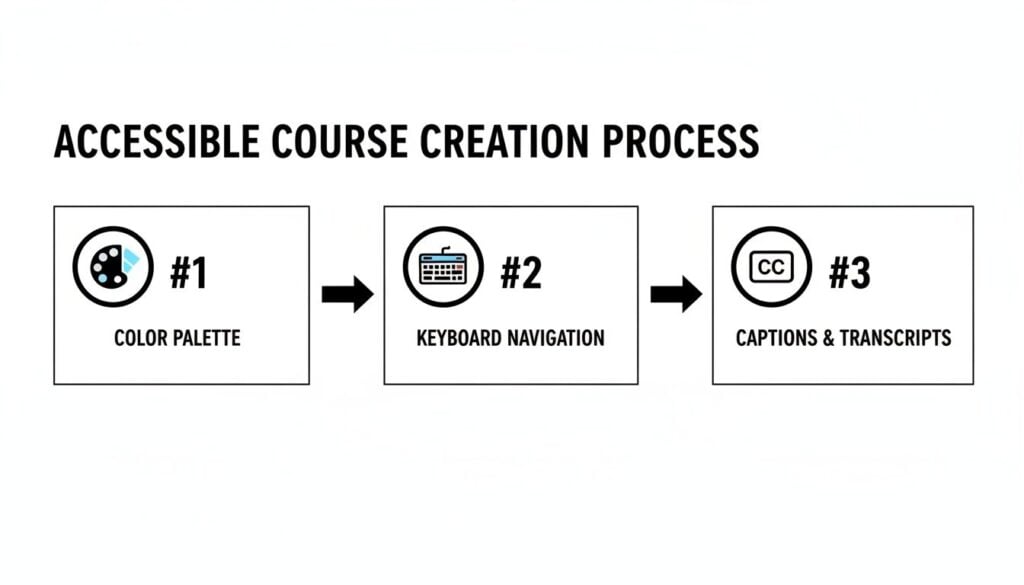
Nailing these foundational elements makes the entire testing and remediation process worlds smoother down the line.
Using Automated Tools for a Quick First Pass
Automated tools are your first line of defense. They are brilliant for spotting the low-hanging fruit. I’m talking about the obvious, code-level mistakes. They give you a quick snapshot of potential problems. This is always where I start my testing.
Two of the best and most popular tools are completely free browser extensions that should be in every instructional designer’s toolkit:
- WAVE by WebAIM: This is a classic for a reason. It injects icons and indicators right onto your page, visually flagging issues like missing alt text, contrast problems, and heading structure errors. It’s incredibly direct and easy to understand at a glance.
- axe DevTools: Developed by Deque, this tool adds a new tab to your browser’s developer console. It runs a fast audit, groups issues by severity, and gives you clear explanations with links to learn more about fixing each one.
But remember, automated tools are just a starting point. They aren’t a silver bullet. Industry studies consistently show they can only catch about 30% to 40% of all accessibility issues. They can tell you if alt text is present, but not if it’s meaningful. That’s where you have to step in.
The Power of Manual Testing
Manual testing is where you truly experience your course from the perspective of someone using assistive technology. It’s the only way to check for things that require human judgment. Honestly, it’s an incredibly eye-opening process that will make you a better designer.
The single most important manual test you can run is a full keyboard-only navigation check. Seriously, unplug your mouse or just put it aside. Can you get through your entire course using only the Tab, Shift+Tab, Enter, and arrow keys? Can you play videos, answer quiz questions, and get to every single link?
If you get stuck, you’ve found a critical barrier.
The keyboard test is non-negotiable. If a user can’t navigate your course with their keyboard, it’s not truly accessible, period. This is the single most important manual check you can perform.
Another game-changing technique is testing with a screen reader. Tools like NVDA (free for Windows) or VoiceOver (built right into Macs and iPhones) read the screen’s content aloud. Just listening to your course will immediately reveal problems like:
- Vague links that just say “Click Here,” offering zero context.
- Images that are announced with useless file names instead of descriptive alt text.
- A confusing page structure because your headings are out of order.
You don’t have to be a screen reader guru to do this. Just turn it on and listen. You’ll be amazed at what you discover about your own content.
Fixing Common E-Learning Accessibility Issues
Finding the problems is only half the battle. Let’s look at how to fix some of the most common issues that come up during testing for Section 508 compliance for e-learning content.
Example 1: Fixing Vague Link Text
- Before:
Click [here](https://example.com) to download the workbook.- A screen reader just announces “link, here,” which is completely useless out of context.
- After:
Download the [Module 3 Workbook (PDF)](https://example.com).- Now it’s crystal clear. The user knows exactly what the link is for and what kind of file to expect.
Example 2: Making Custom Buttons Accessible
Let’s say you’ve designed a beautiful custom “Next Lesson” button that’s made from an image, not a standard HTML button.
- The Problem: A screen reader might ignore it entirely, or a keyboard user might not be able to tab to it. It’s a dead end.
- The Fix: You need to give assistive tech a little more information. By adding
role="button"to the element’s code, you tell screen readers it’s a button. Addingtabindex="0"puts it in the keyboard navigation order. Even better, you can add an ARIA label to explicitly describe it, likearia-label="Go to the next lesson".
By combining quick automated scans with thoughtful, hands-on manual testing, you can systematically find and squash the issues that create barriers for your learners. This two-pronged approach is the key to moving beyond just talking about accessibility and actually achieving it.
Choosing Accessible Platforms and Reporting Compliance

Your course, no matter how perfectly crafted, is never a standalone thing. It has to live somewhere. First in the authoring tool where you build it, then in the Learning Management System (LMS) where learners access it. Getting Section 508 compliance for e-learning content right depends just as much on these platforms as it does on your own design work.
I’ve seen it happen more times than I can count. A team spends months creating a beautifully accessible course, only to have it completely broken by a non-compliant LMS. All that meticulous work on keyboard navigation and ARIA labels goes right out the window if the platform’s own “Next Lesson” button is unusable.
It’s incredibly frustrating. That’s why choosing your tech stack isn’t just an IT decision. It’s a critical first step in your accessibility journey. You need partners, not roadblocks.
What to Look For in Your Authoring Tool and LMS
So, how can you tell if a vendor is genuinely committed to accessibility or just good at marketing? You have to learn to look past the buzzwords and ask for concrete proof.
When you’re evaluating a new authoring tool or LMS, don’t settle for a simple “yes” when you ask if they’re accessible. You need to dig deeper.
- Does the platform’s player and built-in navigation meet WCAG 2.1 AA standards?
- Can you show me a demo of a keyboard-only user navigating a typical course?
- How is accessibility handled for user-generated content, like discussion forums?
- What’s your internal process for testing and validating your own product’s accessibility?
These questions are good, but there’s one document that cuts through all the talk. It’s the single most important piece of paper you can ask for.
The most powerful question you can ask a software vendor is: “Can I see your VPAT?” If they hesitate, say “What’s a VPAT?” or can’t produce one, that’s a massive red flag.
Demystifying the VPAT
VPAT stands for Voluntary Product Accessibility Template. It’s a standardized document companies use to report how their product stacks up against Section 508 accessibility standards. Think of it as a self-reported grade card.
A VPAT breaks down the product’s features and rates its compliance against specific WCAG criteria. You’ll see a few standard responses:
- Supports: The feature fully meets the accessibility standard.
- Partially Supports: The feature doesn’t quite meet the standard, but some of it is usable.
- Does Not Support: The feature flat-out fails to meet the standard.
- Not Applicable: The standard doesn’t apply to this specific feature.
When a vendor sends over their VPAT, your job isn’t to file it away. You have to actually read it. Zero in on the “Partially Supports” and “Does Not Support” sections. These are the landmines. These are the areas where your own content might break or where you’ll be forced to create clunky workarounds. For instructional designers, understanding these details is crucial. You can learn more about picking the right software in our guide to the best authoring tools for e-learning.
The impact of this choice is huge. Just look at the USDA. They made a conscious decision to choose platforms with accessibility baked in from the start. The result? They empowered hundreds of staff members with zero prior experience to create over 2,000 compliant courses with no reported accessibility issues.
That’s the power of getting the platform choice right. When you pick tools that actively support your accessibility goals, your job creating high-quality, compliant e-learning becomes infinitely easier.
Common Questions About E-Learning Accessibility
Once you start down the accessibility rabbit hole, it’s amazing how quickly the same questions pop up. I’ve heard them from seasoned instructional designers and newcomers alike. It’s completely natural.
Let’s clear the air and tackle some of the most persistent questions I hear about Section 508 compliance for e-learning. My goal is to give you the straight, practical answers I wish I had when I was starting out.
Does Section 508 Apply If I Don’t Sell to the Government?
This is, without a doubt, the question I get asked most often. The short answer is, “It’s more complicated than a simple yes or no.” While Section 508 is a US federal law that directly applies to federal agencies, its ripples are felt far and wide.
Here’s the deal. Many states have their own accessibility laws that are either based on or directly point to Section 508 standards. On top of that, if you work with a company that’s a federal contractor, they are often required to comply. This means they’ll expect your training to meet those standards, passing the requirement down to you.
But honestly, even if none of that applies, think of it this way. Following these guidelines is simply good business. It’s a proven best practice that opens your courses to a wider audience. And frankly, it just creates a better, more inclusive product for everyone.
What Is the Difference Between Section 508 and WCAG?
It’s incredibly easy to get these two tangled up, so let’s unravel them. I have a simple analogy that seems to click for most people.
- WCAG (Web Content Accessibility Guidelines): This is the “how-to” manual. It’s the globally recognized, detailed set of technical standards for making web content accessible to people with disabilities. It’s the rulebook everyone agrees on.
- Section 508: This is the US federal law. It’s the “you must do this” directive aimed at government agencies. Critically, the law doesn’t reinvent the wheel. It specifically points to WCAG 2.0 Level AA as the technical standard that federal agencies must follow.
So, when you focus on making your e-learning content conform to WCAG 2.0 AA, you are, for all intents and purposes, meeting the technical requirements of Section 508.
Think of WCAG as the detailed recipe for baking an accessible cake. Section 508 is the law that says a government bake sale must use that specific recipe. By following the recipe, you’re complying with the law.
Can I Use AI Tools to Help with Compliance?
Yes, but—and this is a big but—you have to approach AI with a healthy dose of caution. Think of AI tools as a helpful assistant, not a replacement for your expertise. They can give you a fantastic running start on tasks like drafting video transcripts or generating alt text for straightforward images. This can absolutely save you time.
However, just hitting “accept” on whatever the AI spits out is a recipe for disaster. AI frequently misses the nuance and context that are critical for true accessibility. It can misinterpret an image, get a technical term wrong in a transcript, or write descriptions that just sound bizarre and unnatural.
Here’s my personal rule of thumb. Use AI for the first 80% of the work. Let it handle the grunt work. But a human expert must perform the final 20% of review, refinement, and approval. That final, human check is non-negotiable. It’s what separates a genuinely accessible course from one that just ticks a box.