12 Best AI Subtitle Generators for Course Videos
Creating course videos involves a ton of work, and making them accessible and engaging shouldn’t be the hardest part. Adding accurate subtitles is crucial, not just for viewers who are deaf or hard of hearing, but for everyone. Subtitles boost comprehension, help people watch in noisy environments, and are a must for international audiences. But manually transcribing and timing every line of dialogue is a slow, painful process.
That’s where AI subtitle generators come in. These tools automatically transcribe your audio, saving you dozens of hours. The big question is, which one is right for you? Finding the best AI subtitle generators for course videos means looking beyond just accuracy. You need a tool that fits your specific workflow, whether you’re a solo creator or part of a large instructional design team. For instance, the tools you choose are a core part of the user experience when building an online learning platform.
In this guide, I’ve done the heavy lifting for you. I’ve tested the top platforms and broken them down based on what matters most to educators and course creators. We’ll look at transcription accuracy, editing features, export options like SRT and VTT, and how well they handle multiple speakers.
We will compare everything from pricing and privacy policies to specific integrations with learning management systems. Each option on this list includes a direct link, screenshots of the interface, and an honest look at its strengths and weaknesses. My goal is to give you the clarity you need to pick the perfect tool quickly and get back to what you do best: creating amazing educational content. Let’s dive in.
1. Descript
Descript has become my go-to tool, and it’s much more than just a subtitle generator. It’s a complete video and audio editor that works like a word document. When you upload your course video, Descript automatically transcribes it with impressive accuracy. The magic is what you can do next. Editing your video is as simple as editing the text transcript. If you delete a sentence from the text, it gets cut from the video. This makes cleaning up lesson recordings incredibly fast.
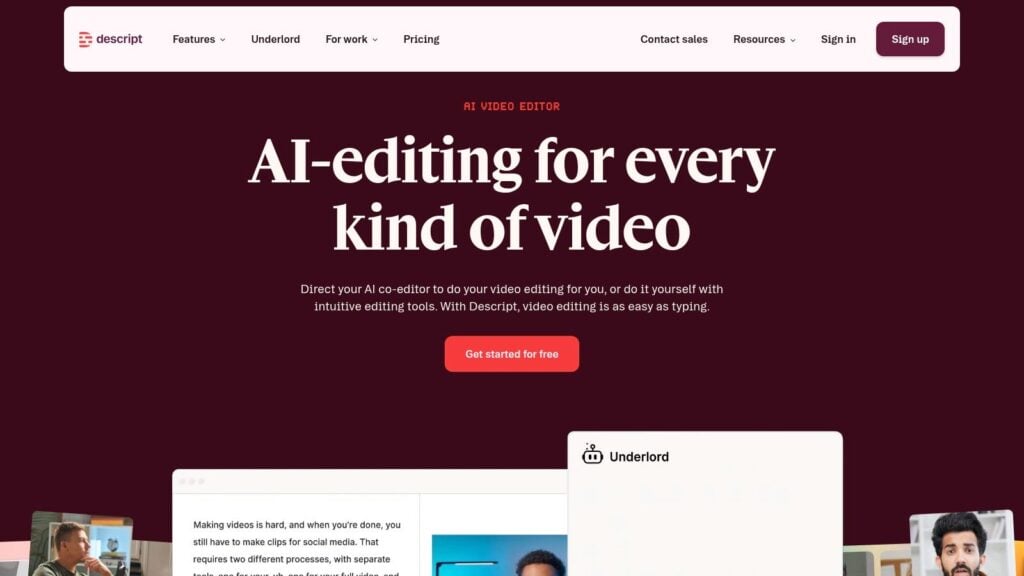
When you’re ready to add captions, you can instantly create them from the transcript. Descript offers highly customizable, animated captions with word-by-word highlighting, which is fantastic for creating engaging online course videos. You can also export standard SRT or VTT files to upload directly into your LMS or course platform.
Best For: Course creators who want an all-in-one tool for recording, editing, and captioning videos, especially those who appreciate a text-based editing workflow.
Key Features:
- Transcript-Based Video Editing: Edit video by simply editing the text.
- Overdub: Correct audio mistakes by typing the correction.
- Studio Sound: Remove background noise and echo with a single click.
- Filler Word Removal: Automatically find and delete words like “uh” and “um”.
- Export Options: Export as SRT/VTT files or burn captions directly into your video.
Pricing: Descript offers a free plan with 1 hour of transcription per month. Paid plans start at $12/month (billed annually) for more transcription hours and advanced features. Keep in mind that AI features like Overdub and Filler Word Removal consume your monthly credit allotment, so heavy users may need a higher-tier plan.
2. Sonix
For course creators who need fast, accurate, and multi-language support, Sonix is a powerful option. It’s an automated transcription and subtitling platform that excels at handling large volumes of video content efficiently. When you upload your course modules, Sonix quickly generates a transcript with speaker labels and word-level timestamps. The accuracy is solid, and its in-browser editor makes it simple to review and correct any mistakes before generating your final captions.
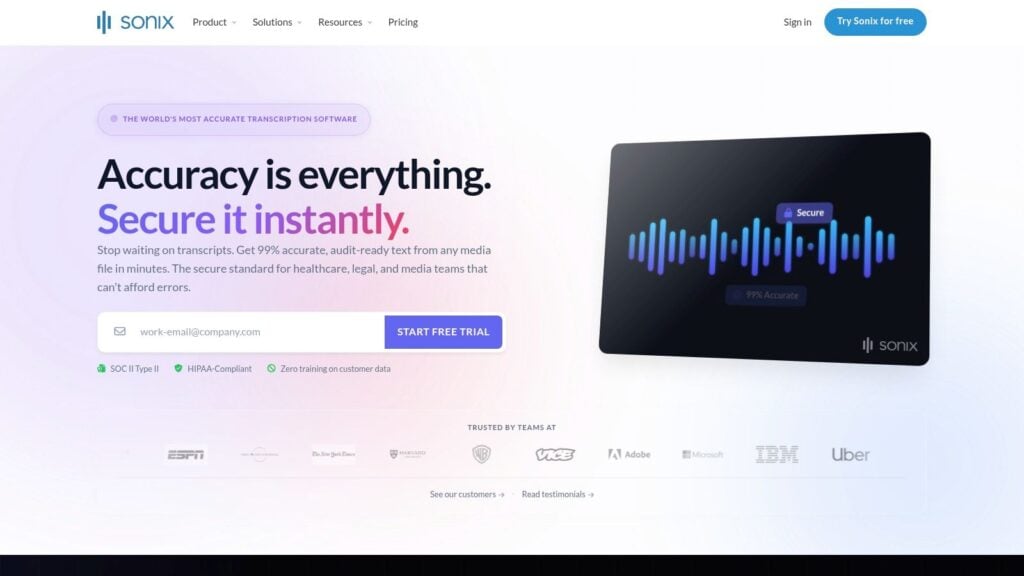
What really makes Sonix stand out is its robust export capabilities. You can export standard SRT and VTT files, which are compatible with nearly all LMS platforms and the best video hosting platforms for online courses. It also offers formats for professional video editing software like Adobe Premiere and Final Cut Pro. This makes it one of the best AI subtitle generators for course videos if your workflow involves multiple tools or team members.
Best For: Educators and institutions needing a reliable, scalable solution for transcribing and subtitling a large library of course videos, especially with multi-language requirements.
Key Features:
- Broad Language Support: Automated transcription, translation, and subtitling in over 53 languages.
- Flexible Export Options: Export to SRT, VTT, and formats for professional video editors.
- Team Collaboration: Features designed for multiple users to work on projects together.
- Custom Dictionary: Improve accuracy by teaching the AI specific terms, names, or acronyms.
- Developer API: Integrate Sonix’s transcription capabilities directly into your own platform or workflow.
Pricing: Sonix offers a pay-as-you-go plan at $10 per hour of video. Subscription plans start at $22 per user/month, which includes 5 hours and a lower per-hour rate for additional content. Translation services are an additional cost.
3. Happy Scribe
Happy Scribe is a fantastic option if your primary need is fast, accurate transcription and subtitling without the complexity of a full video editor. I often use it when I have a batch of course videos ready to go and just need reliable captions. Its interface is clean and focused on one job: turning your audio into text. You upload your video, and its AI generates a transcript with timestamps and speaker detection. This is incredibly useful for interview-style or multi-presenter lessons.
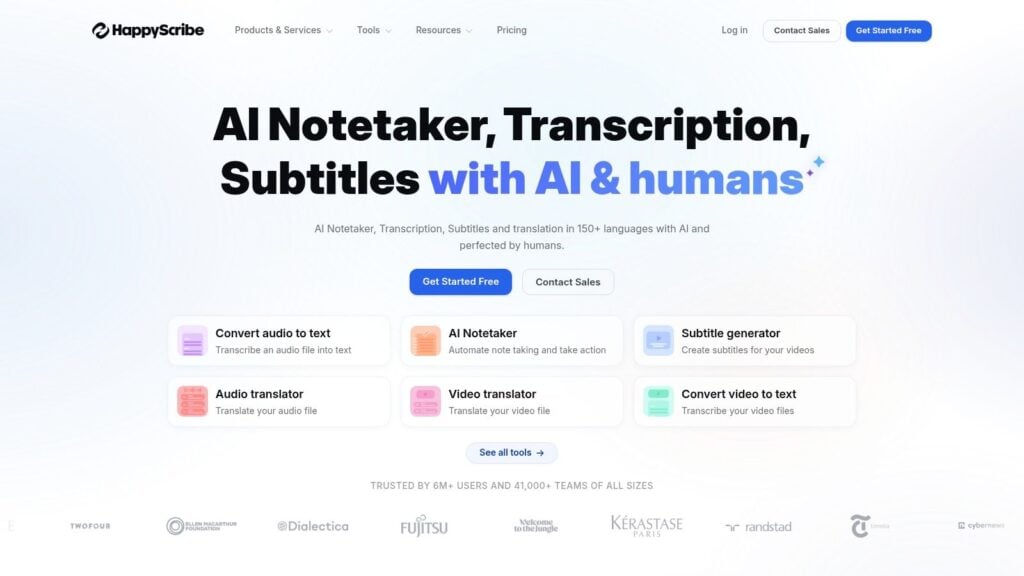
The platform supports a huge number of languages, making it one of the best AI subtitle generators for course videos intended for a global audience. What I really appreciate is the clear separation between AI and human services. You can get a quick AI transcript and clean it up yourself. Or for your most important content, you can pay extra for a human proofreader to ensure near-perfect accuracy. This flexibility is a big win.
Best For: Educators who need a dedicated, reliable tool for transcribing and subtitling course videos in bulk, especially for multiple languages or when a human-proofreading option is needed.
Key Features:
- AI & Human Services: Choose between fast AI transcription or a highly accurate human-made service.
- Broad Language Support: Transcribe and translate videos in over 120 languages and dialects.
- Multiple Export Formats: Download captions as SRT, VTT, TXT, PDF, and more.
- Integrations: Connects with platforms like YouTube, Vimeo, and Google Drive for a smooth workflow.
- Speaker Identification: Automatically detects and labels different speakers in your video.
Pricing: Happy Scribe offers a free trial with a few minutes to test. Paid plans are based on minutes per month, starting at $10/month (billed annually) for 120 minutes of AI transcription. Human-made services are priced per minute and have a much faster turnaround than doing it yourself.
4. Rev (AI Captions)
Rev is a major player in the transcription world. Their AI captioning service is a strong contender, especially for creators who need a mix of speed and the option for human-level accuracy. The platform is straightforward. You upload your course videos, and their AI generates a transcript and timed captions very quickly. I find the interface clean and the editor easy to use for making any necessary corrections to the AI-generated text.
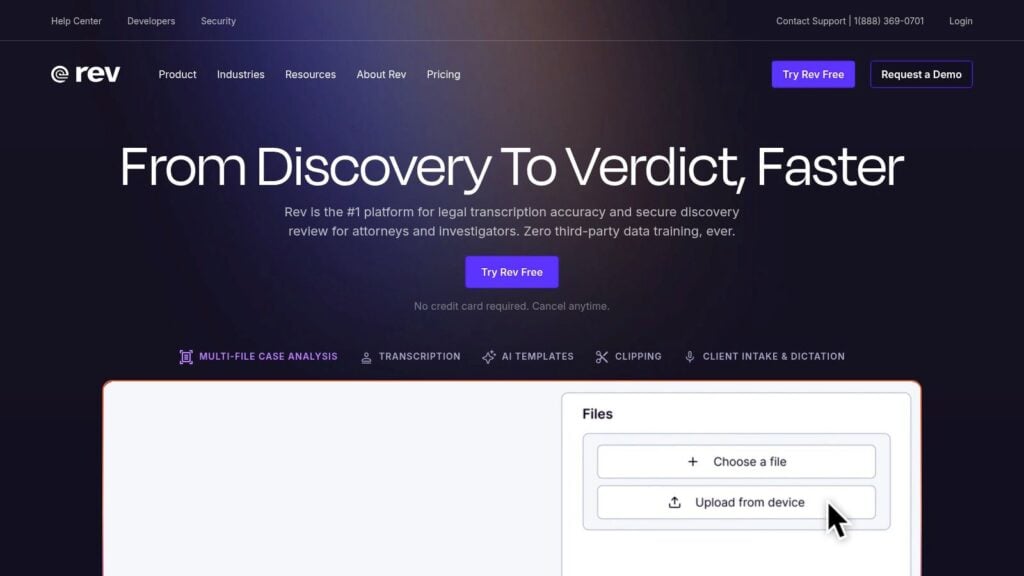
What makes Rev stand out is its hybrid model. You can use the affordable AI for most of your content. But if you have a high-stakes video, like a marketing launch or a critical compliance module, you can easily upgrade to their 99% accurate human transcription service for that specific file. This flexibility is great for course creators who need to balance budget with quality. You get simple SRT and VTT file exports, making it one of the best AI subtitle generators for course videos when you need reliable delivery.
Best For: Educators and organizations who want a simple, scalable captioning solution with the option to escalate to human-powered services for guaranteed accuracy when needed.
Key Features:
- AI & Human Services: Flexible options between fast AI captions and 99% accurate human-powered captions and global subtitles.
- Simple Editor: An easy-to-use online editor to review and correct AI-generated transcripts.
- Straightforward Pricing: Offers both pay-per-minute options and subscription plans with large minute allotments.
- Compliance Options: Enterprise plans offer options for HIPAA and CJIS compliance, important for medical or legal training content.
- Standard Exports: Easily download your captions as SRT or VTT files for any course platform.
Pricing: Rev’s AI transcription has a free trial, then costs $0.25 per minute on a pay-as-you-go basis. The Rev Max subscription is $29.99/month (billed annually) and includes 20 hours of AI transcription per month. Human transcription starts at $1.50 per minute.
5. Kapwing
Kapwing is a fantastic, browser-based tool that I often recommend to educators who need a quick and easy solution. Its strength lies in its simplicity. You can upload your lecture video, and its AI auto-subtitling tool generates a transcript fast. This makes it one of the best AI subtitle generators for course videos if you’re looking for speed and convenience without downloading any software.
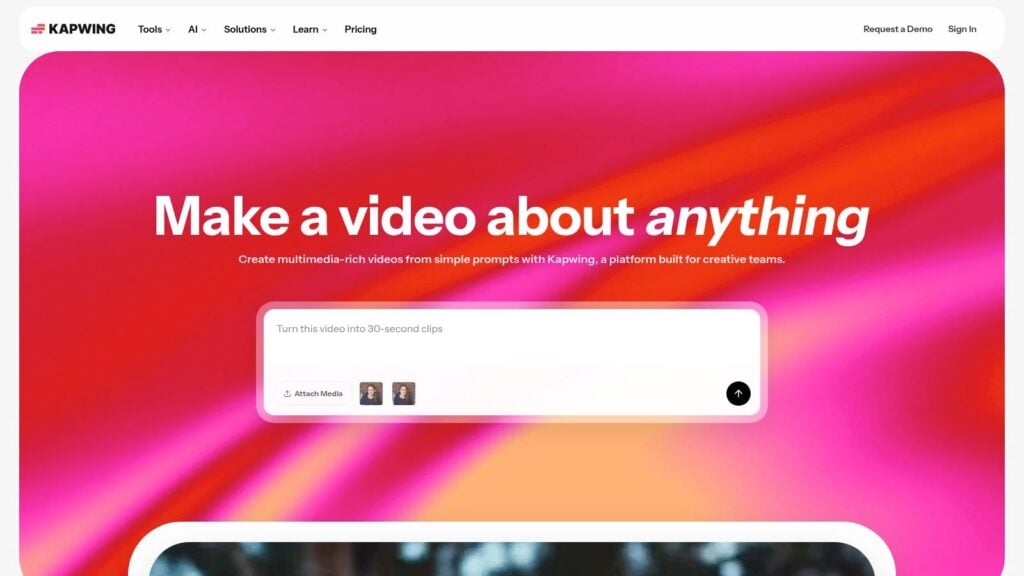
The platform is particularly useful for repurposing course content. You can easily trim a long lecture into a short promotional clip for social media, add styled captions, and export it. For your main course content, you can export a standard SRT file to upload directly into your LMS. A standout feature is the subtitle translation, allowing you to reach a global audience by converting your captions into over 60 languages with just a few clicks.
Best For: Instructors who need a fast, web-based tool for generating subtitles and repurposing lecture videos into social media clips without a steep learning curve.
Key Features:
- Auto-Subtitling: Quickly generates captions from your video’s audio.
- Subtitle Translation: Translate subtitles into 60+ different languages.
- Quick Styling: Easy-to-use templates and tools for customizing caption appearance.
- Web-Based Workflow: No software to download, everything is done in your browser.
- Export Options: Export as SRT files or burn captions directly into the video (up to 4K on paid plans).
Pricing: Kapwing has a free plan, but exports are watermarked and limited in length. The Pro plan, starting at $16/month (billed annually), removes watermarks and offers a generous amount of auto-transcription minutes. This makes it a great value for frequent course creators.
6. VEED.IO
VEED.IO has become a popular choice for creators who need to quickly add captions and branding to their videos, all within a browser. It’s an end-to-end online video editor where the automatic subtitle generator is a core feature. You upload your lesson video, and with a single click, it transcribes and generates captions. The accuracy is solid, and the real strength is how fast you can go from raw video to a polished, captioned lesson ready for social media or your course platform.
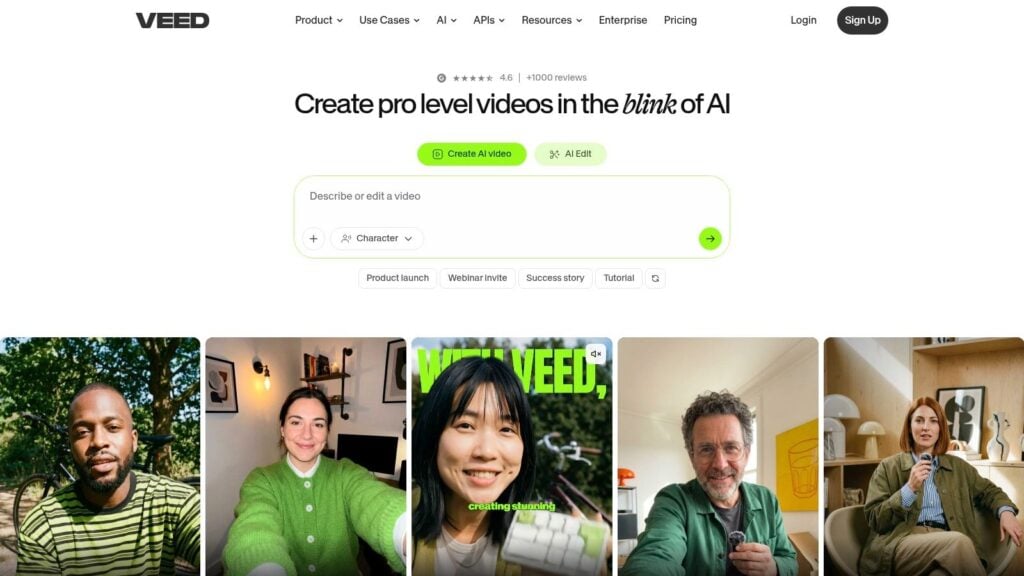
The platform shines with its styling options. You can easily create animated, word-by-word captions, apply your brand colors, and add logos or progress bars. This makes it perfect for creating short, promotional clips from your main course content. While it can handle longer videos, its toolset is especially useful for repurposing content. You can export standard SRT/VTT files for accessibility or burn the styled captions directly into your video file. It also includes screen recording, making it one of the best screen recording software for course creators who want an all-in-one solution.
Best For: Course creators who need a fast, browser-based tool for creating stylishly captioned videos and social media clips without complex software.
Key Features:
- Auto Subtitle Generator: Creates captions automatically with high claimed accuracy.
- Dynamic Caption Styles: Offers a wide range of animated and customizable subtitle styles.
- Built-in Translation: Translate your subtitles into dozens of languages to reach a global audience.
- Brand Kit: Add your brand colors, fonts, and logos to maintain a consistent look.
- Export Options: Download SRT/VTT files or export video with burned-in captions.
Pricing: VEED.IO has a free plan with limited features and a watermark. Paid plans start at around $12/month (billed annually) and unlock more features and export options. The pricing structure can be dynamic, so it’s a good idea to confirm the exact plan specifics and limits before purchasing.
7. Nova A.I.
Nova A.I. is a creator-focused online video editor that really shines when it comes to generating and translating subtitles. For course creators who need to reach a global audience, this platform simplifies the process of making your content accessible in multiple languages. You upload your lesson, and its AI quickly gets to work transcribing it.
The platform is one of the more straightforward options if you’re looking for the best AI subtitle generators for course videos. You can generate captions, translate them into dozens of languages, and then choose to either burn them directly into your video or export them. The clear minute-based pricing tiers make it easy to plan for batch-processing a whole module of course videos at once without worrying about hidden costs.
Best For: Course creators who need a simple, scalable solution for subtitling and translating video lessons for a multi-language audience.
Key Features:
- Auto-Subtitle & Translate: Generate captions automatically and translate them into over 75 languages.
- Flexible Export: Download subtitles as SRT, VTT, or TXT files for your LMS.
- Burn-in Captions: Permanently embed styled captions into your video file.
- Tiered Minute Quotas: Clear pricing based on the minutes of video you need to process.
- Video Editing Tools: Includes basic video editing features and access to stock assets.
Pricing: Nova A.I. has a free plan that includes 30 minutes of transcription total. Paid plans start at $10/month for 120 minutes of transcription and increase from there. You can also purchase additional minutes as needed, which is helpful for one-off projects.
Visit Nova A.I.
8. Maestra
Maestra is a powerful option for course creators and learning teams who need to manage subtitles across a large library of content, especially for a global audience. It’s built around a suite of tools for transcription, subtitling, and even AI-powered voiceovers and dubbing. This makes it a strong contender for localizing your course material. When you upload a video, its automatic transcription is quick and provides a solid base for creating accurate subtitles.
The platform really shines for teams. You can set up team-based billing, assign user roles, and get large allotments of transcription minutes. This is perfect for organizations with multiple instructors or departments creating content. This centralized approach prevents a lot of headaches compared to having every creator manage their own subscription. It’s a great example of one of the best AI subtitle generators for course videos that also considers team workflows.
Best For: Educational institutions and businesses with large course catalogs that require translation, localization, and collaborative subtitle management.
Key Features:
- Broad Language Support: Automatically subtitle and translate content into over 125 languages.
- Team Collaboration: Features include team billing, user roles and permissions, and shared workspaces.
- Subtitle Editor: An online editor allows you to easily review and correct the AI-generated text and timing.
- Translation Engine Options: Choose between different AI translation models like OpenAI or DeepL for your needs.
- Glossary: Maintain terminology consistency across all your course videos by creating a custom glossary.
Pricing: Maestra has a free trial. Paid plans start at $10/month (billed annually) which includes 5 hours of transcription. Higher-tier plans offer more hours and team features, which are necessary for most serious course creators. Enterprise needs require a custom quote.
9. Zubtitle
Sometimes you don’t need a full-blown video editor. If your primary goal is to quickly add stylish, branded captions to short video clips for social media or course promotions, Zubtitle is a fantastic, focused tool. It’s built for speed and simplicity. You just upload your video, and it quickly generates the transcript for you to review and edit.
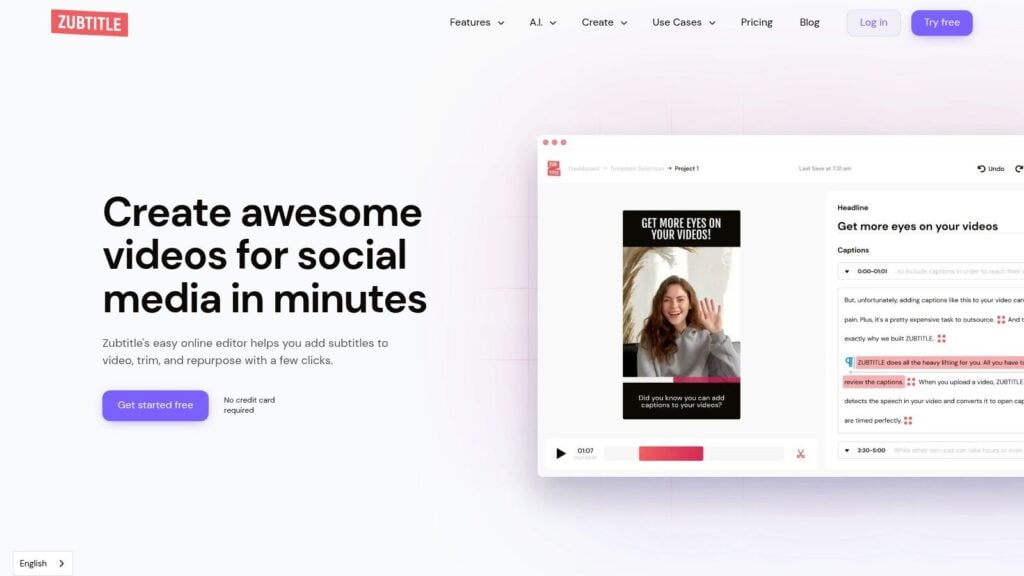
The platform shines when it comes to styling. You can pick from pre-made templates or customize your fonts, colors, and backgrounds to match your course branding. This is perfect for creating eye-catching trailers or lesson highlights to share on platforms like Instagram or LinkedIn. While you can download standard SRT or TXT files for your main course lessons, Zubtitle’s main strength is its ability to burn the captions directly into the video. This ensures they look great on any platform. It’s one of the best AI subtitle generators for course videos when your focus is marketing and engagement.
Best For: Course creators who need a fast, easy way to create branded, captioned video clips for social media marketing and promotional content.
Key Features:
- Auto-Captioning: Quickly generates transcripts and subtitles for your videos.
- Style Templates: A library of pre-designed caption styles for fast editing.
- Burn-in Subtitle Options: Permanently embed styled captions directly into your video file.
- Simple Export Workflow: Easily download videos with burned-in captions or export SRT/TXT files.
- Bulk Minutes: Plans offer a set number of video minutes per month, suited for short-form content.
Pricing: Zubtitle has a free trial to test the service. Paid plans start at $19/month for 10 video minutes and go up based on the volume of content you need to process. The pricing model is geared toward creators producing a consistent, but not massive, amount of short video content each month.
10. Riverside
Riverside has become a key part of my workflow, especially when recording course content that involves remote guests or co-instructors. While it’s primarily known as a high-quality remote recording studio, its integrated transcription and captioning features make it a powerful all-in-one solution. You record your interview or solo lesson, and Riverside automatically generates a highly accurate transcript.
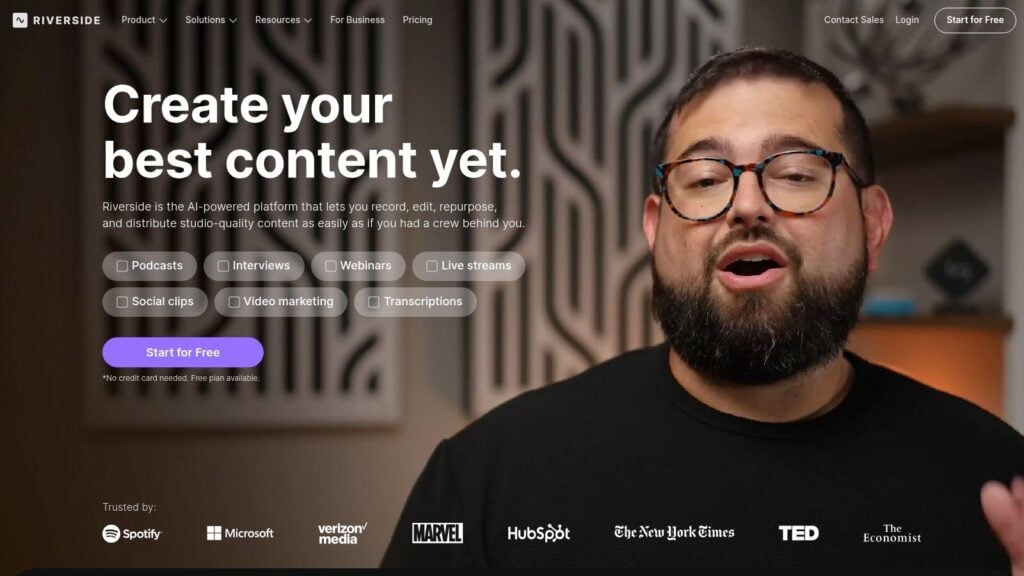
From that transcript, you can generate and style captions directly within the editor. It supports over 100 languages, which is a huge plus for reaching a global audience. You can then choose to burn the styled captions directly into your video or export a standard SRT file for uploading to your course platform. The platform’s commitment to local recording means you get uncompressed, high-fidelity audio and video from every participant. This eliminates the quality drops common with other video conferencing tools.
Best For: Educators who frequently record remote interviews, expert panels, or co-taught lessons and need a single tool for high-quality recording and captioning.
Key Features:
- Local High-Quality Recording: Records separate 4K video and WAV audio tracks for each participant locally.
- AI Transcription: Automatically transcribes recordings in over 100 languages.
- Text-Based Editor: Edit your video by making changes to the text transcript.
- Caption Generation: Create open or closed captions from the transcript.
- Export Options: Export as SRT or burn captions directly into the final video.
Pricing: Riverside has a free plan with up to 2 hours of separate track recording. Paid plans start at $15/month (billed annually) for more recording hours and features like live streaming and customizable backgrounds.
11. Adobe Premiere Pro (Speech to Text)
For course creators already invested in the Adobe Creative Cloud ecosystem, Premiere Pro’s built-in Speech to Text feature is an obvious and powerful choice. Instead of exporting your video to a third-party tool, you can generate a full transcript right on your editing timeline. This integration is a huge time-saver, keeping your entire post-production workflow within a single application. The transcription accuracy is solid, and it handles multiple speakers quite well.
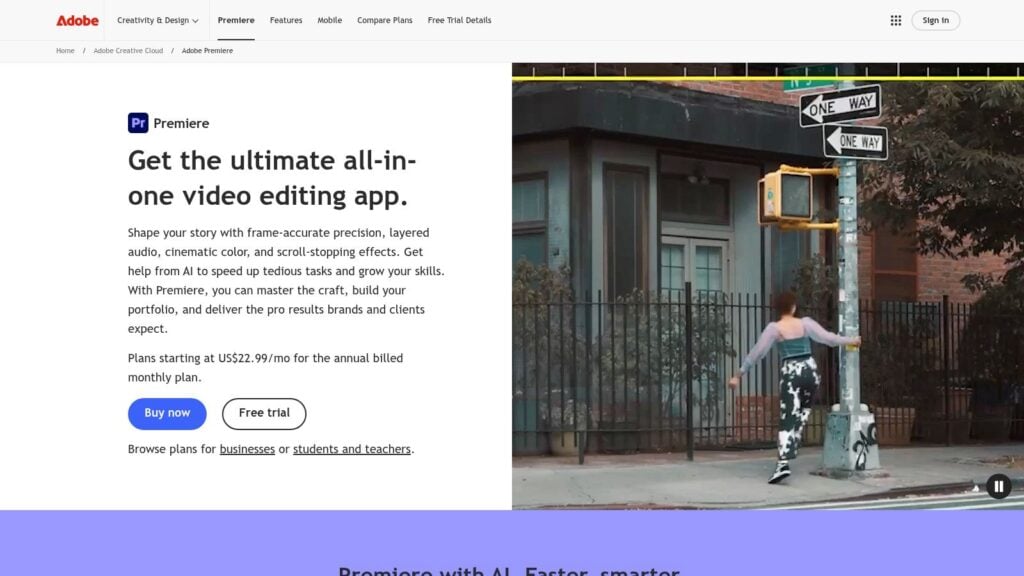
Once the transcript is ready, Premiere Pro can create a caption track in just a couple of clicks. The real strength here is the granular control. You can adjust the styling, timing, and positioning of every single caption block directly on the timeline. This gives you complete command over the final look. This makes it one of the best AI subtitle generators for course videos if you need to meet strict branding or accessibility guidelines. You also get text-based editing, allowing you to find specific moments in your video by searching the transcript.
Best For: Video producers and course creation teams who already use Adobe Premiere Pro for their video editing and require a seamless, native captioning workflow with maximum design control.
Key Features:
- Integrated Transcription: Generate transcripts and captions directly within the Premiere Pro timeline.
- Text-Based Editing: Use the transcript to navigate your video timeline and make edits.
- Essential Graphics Panel: Offers extensive styling options for fonts, colors, backgrounds, and positioning.
- Timeline Control: Manually adjust the timing and length of individual caption segments with precision.
- Export Options: Export as SRT/VTT files or burn captions directly into the video.
Pricing: Included with an Adobe Premiere Pro subscription, which starts at $22.99/month for individuals or as part of the full Creative Cloud suite. Transcription is included at no extra cost for subscribers.
12. SubtitleBee
For course creators who need to quickly add subtitles to a high volume of videos, SubtitleBee is an excellent choice. It’s a straightforward, web-based tool designed for speed and simplicity. You upload your lesson video, and its AI gets to work. It generates subtitles with support for over 120 languages, which is a huge plus for reaching a global student audience.
The interface is clean and lets you make quick edits to the generated text. You can also style the captions, add your logo for branding, and choose how the subtitles are displayed. While it focuses more on burning captions directly into the video, it also allows you to download standard SRT or VTT files. This makes it a flexible tool, whether you’re creating micro-lessons for social media or need accessibility files for your LMS. It’s one of the best AI subtitle generators for course videos if your primary need is a fast, no-fuss workflow.
Best For: Educators and creators who produce lots of video content and need a quick, simple tool for auto-captioning in multiple languages.
Key Features:
- Broad Language Support: Automatically generate subtitles in over 120 languages.
- Simple Editor: A clean interface for making quick corrections to the AI transcript.
- Branding Controls: Add your own logo and customize the look of your captions.
- Flexible Export Options: Download your video with burned-in captions or export SRT, VTT, and other text formats.
- No Software to Install: The entire process is handled online in your browser.
Pricing: SubtitleBee offers a free trial to test the service. Paid plans start at around $19/month for a set number of video minutes, with higher tiers offering more minutes and team features.
Top 12 AI Subtitle Generators — Feature Snapshot
| Tool | Core features | Best for / Target audience | Pricing & value | Unique selling point |
|---|---|---|---|---|
| Descript | Transcript-based editor; animated captions; SRT/VTT export; record→edit→caption workflow | Course teams making many short lessons & promos | AI features use monthly credits; higher tiers for heavy use | Text-based editing + customizable animated captions |
| Sonix | 53+ languages; word-level timestamps; many export formats; API & team tools | Professional LMS/NLE workflows and localization teams | Transparent per-hour billing; multi-seat options; extras for translation | Excellent export compatibility for editors & LMS |
| Happy Scribe | AI minutes; speaker detection; integrations; optional human proofreading | High-volume courses and lessons needing proofreading | Minute pools (monthly/annual); human services cost more | Optional human-made transcripts + wide integrations |
| Rev (AI Captions) | AI + human captioning; large minute allotments; enterprise compliance | Creators/orgs wanting mix of speed and broadcast accuracy | Pay-per-minute or subscription; human add-ons increase cost | US-based human caption services & compliance options |
| Kapwing | Auto-subtitling; 60+ language translation; 4K export; web styling | Non-technical instructors repurposing lectures into social clips | Free limited plan (watermark); paid for minutes & 4K | Simple browser workflow for quick repurposing |
| VEED.IO | Auto subtitle generator; animated captions; translation; collaboration | Branded lesson videos and social clips for small teams | Dynamic pricing—confirm plan details | Animated/dynamic caption styles + team collaboration |
| Nova A.I. | Auto-subtitle & translate; SRT/VTT/TXT export; tiered minute quotas; stock assets | Multi-language course creators on a budget | Free plan + affordable paid tiers; add-on minutes | Clear minute quotas and storage for batch work |
| Maestra | Subtitles, dubbing & translation (125+ langs); API; team billing & glossary | Course teams, L&D, and large catalogs | High minute tiers; enterprise/custom plans via sales | Glossary + translation consistency for large teams |
| Zubtitle | Auto-captioning; style templates; SRT/TXT export; bulk minutes | Short promos, social trailers, quick lecture clips | Inexpensive plans focused on short-form use | Easiest tool for styled subtitles & quick exports |
| Riverside | Recording + captioning; 100+ languages; local high-quality recording | Remote instructors, interviews, webinars | Tiered plans; business/enterprise may be quote-based | High-quality local recording with built-in captions |
| Adobe Premiere Pro (Speech to Text) | Auto-transcribe; captions from transcript; timeline-level styling | Advanced course production teams using Creative Cloud | Requires Adobe Creative Cloud subscription | Full NLE caption control integrated into timeline |
| SubtitleBee | Auto-subtitle (120+ langs); SRT/VTT/ASS downloads; branding controls | Creators producing many international lessons | Simple pricing; some workflows require export step | Broad language coverage with a fast, simple UI |
Final Thoughts
Whew, that was a lot of ground to cover. We’ve walked through some of the absolute best AI subtitle generators for course videos available today. From powerful all-in-one editors like Descript to focused, fast tools like Zubtitle. My goal was to give you a real, practical look at what each platform offers, not just a list of features.
Choosing the right tool feels like a big decision, but it doesn’t have to be overwhelming. The perfect tool for another course creator might not be the perfect one for you. It all comes back to your specific workflow, your budget, and what you value most.
How to Choose Your Subtitle Generator
As you make your decision, I want you to circle back to a few key questions. Think of this as your personal checklist for finding the right fit.
- What’s my primary workflow? Are you looking for a tool that just transcribes and lets you export an SRT file? Or do you need a full video editor where subtitles are just one part of the process? A tool like Rev or Sonix is great for the first scenario, while Descript or VEED.IO excels at the second.
- How important is accuracy… really? All these tools are good, but some are better than others, especially with technical jargon or multiple speakers. If your content is highly specialized (think medical or legal courses), a service with human review options like Rev or the high accuracy of a tool like Sonix might be worth the extra cost. For more general content, the AI-only accuracy from most tools on this list will be more than enough.
- What’s my budget? Are you a solo creator just starting out, or a large organization with a dedicated budget? For creators on a tight budget, tools with generous free tiers or affordable pay-as-you-go plans like Kapwing or even Adobe Premiere Pro’s built-in feature (if you already have the Creative Cloud subscription) are excellent starting points. For teams, the collaboration features and advanced capabilities of Descript or Happy Scribe might justify the monthly subscription.
- Where do my videos live? Do you need direct integrations with your LMS or hosting platform? Some tools play nicer with platforms like Kajabi, Teachable, or Thinkific. Always check for direct integrations or, at the very least, easy export options like SRT and VTT files, which are universally accepted.
Your Next Steps
Information is great, but action is better. Here’s what I recommend you do next.
- Shortlist Your Top 3: Based on the reviews and your answers above, pick three tools that seem like the best potential fit. Don’t overthink it.
- Sign Up for Free Trials: Nearly every tool on this list offers a free trial or a free plan. Take advantage of it. There is no substitute for hands-on experience.
- Run a Real-World Test: Grab one of your existing course videos, ideally one that’s 5-10 minutes long. Upload it to each of your top three choices. See how they handle your voice, your terminology, and your accent. Time how long it takes you to edit the transcript to 100% accuracy.
- Check the Final Product: Export the subtitles and test them. If you need burned-in captions, see how they look. If you need an SRT file, upload it to your video player. Does it work as expected?
This process will give you more clarity than any review ever could. You’ll quickly discover which interface feels intuitive and which one feels clumsy. You’ll see whose AI “gets” you the best.
Ultimately, finding one of the best AI subtitle generators for your course videos improves your accessibility compliance. But it’s also about respecting your students’ time and learning preferences. It’s about making your valuable knowledge as easy to absorb as possible. By adding accurate, well-timed subtitles, you’re sending a clear message: you care about their learning experience. Now go find the tool that helps you do that best.



![How to Effectively Host Webinars Using OBS Studio [Guide from Expert]](https://learnstream.io/wp-content/uploads/2024/08/image-768x333.png)