Camtasia vs ScreenFlow for Mac Course Creators: The Verdict
You’ve got the outline done, the slides cleaned up, your mic finally sounds decent, and your Mac is ready.
Then the small decision turns into a bigger one than it should. Camtasia or ScreenFlow?
I’ve seen course creators lose days on this choice because every comparison seems to answer a different question. One review cares about editing polish. Another cares about raw screen capture quality. Another talks only about price, which is usually the least useful way to buy software you’ll use every week.
For Mac course creators, this choice affects a lot more than one checkout page. It shapes how fast you can record lessons, how painful edits feel on a long production day, whether your videos can plug into an LMS, and whether the “cheaper” app stays cheaper once you’ve used it for a few years.
The Toughest Choice for Mac Course Creators
A lot of Mac-based educators hit the same wall.
You want one tool that records your screen cleanly, handles webcam and audio without drama, gives you enough editing control to fix mistakes, and doesn’t force you into a giant post-production process every time you publish a lesson. Both Camtasia and ScreenFlow look close enough on the surface that the decision gets muddy fast.
The confusion gets worse when your business model isn’t simple. A YouTube tutorial channel needs different things than an LMS-based certification course. A solo creator selling workshops through one of the best platforms to sell digital products has a different set of priorities than a training team building SCORM-ready modules for clients.
Here’s the short version from my side.
ScreenFlow usually feels better on a Mac the moment you open it. It’s leaner, more native, and often faster for straight screen-recording work.
Camtasia usually makes more sense once your course business gets more complex. If you care about interactivity, LMS packaging, reusable templates, and working across Mac and Windows environments, it starts pulling ahead.
That doesn’t mean one is universally “best.” It means one is usually better for your workflow.
Quick comparison table
| Category | Camtasia | ScreenFlow |
|---|---|---|
| Best fit | Interactive courses and structured training | Fast Mac-native recording and editing |
| Platform | Mac and Windows | Mac only |
| Upfront price | $299.99 | $169 |
| Subscription option mentioned in verified data | $179.88/year | Media library add-on available |
| User satisfaction | 92% satisfaction on Crozdesk in a head-to-head context linked from G2 comparison | 90% satisfaction in the verified comparisons |
| LMS support | SCORM 1.2/2004 and xAPI | No native interactive LMS-focused export noted in verified data |
| Strongest edge | E-learning features and feature completeness | Mac performance and high-resolution capture |
| Long-term cost angle | Higher upfront, simpler value case for many course businesses | Lower upfront, but add-ons can change the math over time |
Practical rule: If your course is mostly “watch and learn,” start by looking hard at ScreenFlow. If your course needs to report, track, quiz, or scale inside formal learning systems, Camtasia deserves the first serious look.
Understanding Their Core Philosophies
A Mac course creator usually feels this difference in the first week, not the first checkout screen.
One app pushes you toward a teaching system. The other keeps you close to fast screen recording and editing on macOS. That design choice shapes your workflow, your output, and your three-year cost more than the sticker price does.
Camtasia is built around repeatable teaching content
Camtasia makes the most sense when recording is only one step in the job.
Its core idea is simple. Capture the lesson, then finish it inside the same environment with the teaching layers already in mind. Callouts, cursor emphasis, reusable assets, branded intros, quizzes, and LMS-oriented outputs are part of the product direction, not side features. That matters when you are producing a course library instead of a handful of videos.
I notice this most when a course needs consistency across dozens of lessons. Camtasia fits teams and solo creators who want every module to follow the same structure without rebuilding the format each time. If you are comparing it with other tools in the broader best screen recording software for course creators category, that “system builder” philosophy is what separates it.
That philosophy also affects total cost of ownership. A higher upfront or recurring price can make sense if it replaces other tools, reduces rework, and gives you built-in features you would otherwise patch together with extra apps or stock asset subscriptions.
ScreenFlow is built around efficient Mac production
ScreenFlow starts from a different place. It aims to make recording and editing on a Mac feel quick, clean, and predictable.
That narrower focus is why many solo course creators like it.
If your business is built on tutorials, walkthroughs, software demos, talking-head lessons, or polished screencasts, ScreenFlow often feels lighter in daily use. You spend less time managing a larger production environment and more time getting from raw recording to finished lesson. For creators who already have their own process for slides, worksheets, audio cleanup, or achieving high-quality remote audio, that can be the better fit.
The trade-off is straightforward. ScreenFlow is excellent when your course business values speed and Mac-native editing feel over deeper course packaging and built-in e-learning structure.
The real philosophical split is about business model
Feature lists hide the important question.
Are you building a course operation that depends on standardized assets, interactive lesson elements, and formal training outputs? Or are you publishing clear video lessons as efficiently as possible on a Mac?
Camtasia is closer to a course production system. ScreenFlow is closer to a focused recording and editing tool for Mac creators.
That difference changes the three-year math. Camtasia can cost more upfront, but it may reduce the need for extra tools as your catalog grows. ScreenFlow can start cheaper, but the total cost depends on whether you later add paid media libraries, extra workflow tools, or other software to cover gaps. For entrepreneurs, that is the more useful comparison. Not which app looks cheaper today. Which one keeps your production stack simpler and your margins healthier over time.
Your Day-to-Day Recording and Editing Workflow
Monday morning, you sit down to record three lessons before lunch. By the second take, the wrong app starts costing real money. Not because the export failed, but because every trim, retake, asset swap, and audio fix takes longer than it should.
That is why daily workflow deserves more attention than feature checklists. Over three years, the cheaper tool on paper can become the more expensive one if it adds ten extra minutes to every lesson or pushes you into extra add-ons to keep production organized.
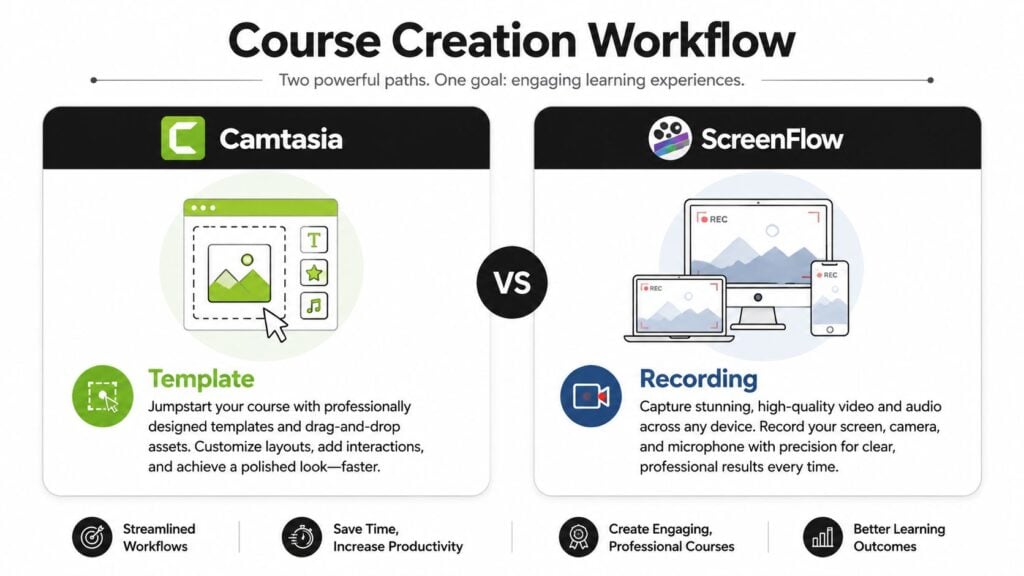
Recording a lesson in Camtasia
Camtasia fits a production line mindset.
If a lesson needs a branded intro, lower thirds, callouts, cursor treatment, a reusable outro, and the same visual structure you use across a full catalog, Camtasia saves time by keeping that system inside one editor. I have found it stronger when the goal is consistency across dozens of lessons, not just speed on one recording.
That matters for TCO. A tool that helps you standardize lessons can reduce editing drift, reduce rework, and lower your dependence on separate design or packaging tools as your library grows.
Camtasia is less appealing for quick capture jobs. If the task is record, trim mistakes, and publish a clean walkthrough, the interface can feel heavier than the job requires.
Recording a lesson in ScreenFlow
ScreenFlow is the one I reach for when I want to stay in recording mode, not production mode.
On a Mac, it usually feels quicker to set up a screen, camera, mic, and start talking. That difference sounds small until you batch record a course. Small delays repeat. So do small wins.
For solo creators selling straightforward video courses, that speed can be worth more than a longer feature list. Lower friction often means you publish more consistently, and consistency has its own financial value over a three-year stretch.
Editing feel on the timeline
The editing gap shows up after recording.
| Workflow question | Camtasia | ScreenFlow |
|---|---|---|
| Building repeatable branded lessons | Strong | Good |
| Fast cleanup of a demo video | Good | Strong |
| Mixed asset-heavy projects | Strong | Good |
| Mac-native responsiveness | Good | Strong |
| Solo creator simplicity | Good | Strong |
Camtasia’s timeline suits creators who assemble lessons from recurring parts. Intros, overlays, teaching callouts, reused music beds, and standard lesson endings are easier to keep consistent when the editor is built for that style of work.
ScreenFlow feels better for direct editing. Cut dead space. Tighten explanations. Drop in a callout. Export. If your course business depends on shipping clear lessons fast, that lighter editing loop can save more money than a lower sticker price.
Audio is part of this workflow too. If interviews, guest experts, or remote co-instructors show up in your course, better source audio will save hours in post. The basics of achieving high-quality remote audio matter before you start judging either editor.
Which workflow holds up better over time
ScreenFlow usually makes more sense for the creator who records on a Mac, edits alone, and wants the shortest path from idea to published lesson.
Camtasia usually ages better for the creator building a larger catalog with recurring visual assets, standardized modules, and a workflow that may expand beyond one machine or one person.
That is the practical buying question. Which app saves more labor across three years, and which one forces extra spending on supporting tools, media, or process fixes later?
If you are still comparing beyond these two, LearnStream’s roundup of the best screen recording software for course creators is a useful wider comparison.
Advanced Features That Boost Learner Engagement
A learner opens lesson six, watches eight minutes, and remembers almost nothing. The screen capture was clear. The edits were clean. The problem was the teaching design.
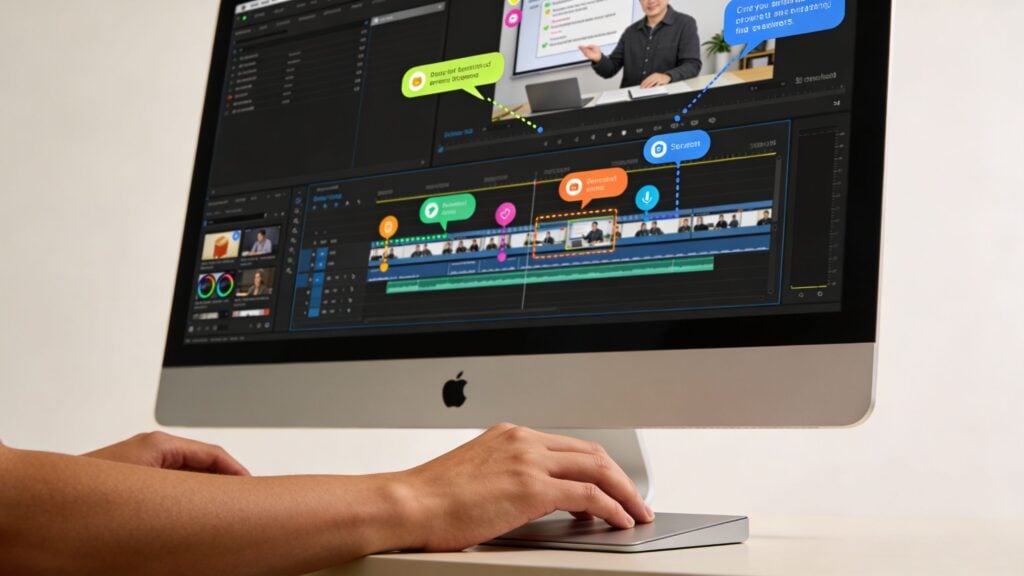
Engagement comes from two different places. One is interaction inside the lesson. The other is presentation quality that reduces friction and keeps attention on the task. Camtasia and ScreenFlow serve different sides of that problem, and that difference has real cost implications over three years.
Camtasia adds teaching mechanics, not just editing tools
Camtasia stands out if the course itself needs to do more than play video.
It supports SCORM and xAPI workflows for LMS delivery, along with quizzes and branching-style interactions. For creators selling to companies, schools, or training teams, those features change the product you can offer. A standard MP4 lesson and an LMS-ready training module are priced, delivered, and maintained differently.
I have seen this become the deciding factor fast. If a client wants completion tracking, quiz checkpoints, or reporting inside an existing LMS, ScreenFlow usually means adding other software or rebuilding the lesson elsewhere. That raises your three-year cost, even if the initial app price looked lower.
Why that matters for actual learners
Interactive elements earn their place when they slow the learner down at the right moment.
A quiz after a dense concept checks recall before confusion compounds. A branching path lets a learner choose the scenario that matches their job. A hotspot or click target can turn passive watching into active review. Those are teaching tools, not decoration.
Camtasia fits better when you need to package lesson delivery and learner response in one production workflow.
Camtasia is the stronger fit if you need
- LMS-ready course packages with SCORM or xAPI support
- Built-in quizzes that check understanding inside the lesson
- Branching lesson paths for scenario-based training
- Fewer add-on tools to deliver structured learning over time
ScreenFlow keeps learners engaged through speed and clarity
ScreenFlow takes a simpler route. It helps you make lessons tighter, cleaner, and easier to follow.
That matters more than many creators expect. In software training, product demos, and screen-based lessons, engagement usually drops because pacing drifts, pauses stay in, or the visual story feels cluttered. ScreenFlow is well suited to that kind of cleanup. Nested clips help with repeatable segments, and its editing flow makes it easier to keep a lesson moving.
For solo Mac creators, that often translates into better teaching rhythm. You spend less effort wrestling with the timeline and more effort improving the lesson itself. If your business runs on publishing frequent tutorial content, that lower editing friction can save more money than feature depth you may never use.
ScreenFlow is the stronger fit if you need
- Fast cleanup for talking-head and screen tutorial lessons
- Modular lesson assembly with nested clips
- Polished software or mobile walkthroughs
- A lower-overhead production process for ongoing course publishing
That is the trade-off. Camtasia gives you more ways to shape learner interaction inside the lesson. ScreenFlow helps you keep lessons concise and visually controlled.
Neither approach is automatically better. The better choice is the one that matches how you teach and what you will have to pay for later. If learner engagement in your business means quiz data, LMS reporting, and structured checkpoints, Camtasia can reduce outside tool costs. If learner engagement means sharper pacing and faster publishing on a Mac, ScreenFlow may keep your production stack leaner. For practical lesson design ideas beyond software choice, LearnStream’s guide to creating engaging online course videos is useful.
Performance and Exporting on Apple Silicon Macs
You feel this section at the worst possible moment. The lesson is edited, upload time is approaching, and the export bar becomes the whole story.
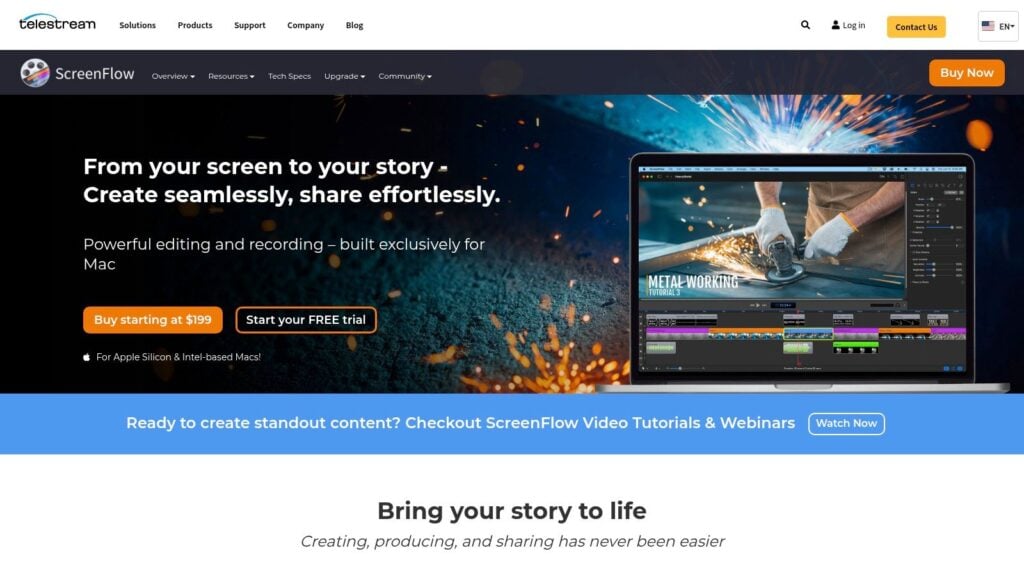
On Apple Silicon Macs, ScreenFlow usually feels more at home. In practice, that shows up as smoother timeline response, cleaner high-resolution screen capture, and less friction when recording Mac and iOS workflows. For course creators who publish often, those small speed gains matter because they reduce the hidden labor cost behind every lesson update.
I care less about benchmark-style claims than about whether the editor stays out of the way during a real production week.
Why ScreenFlow often feels faster
ScreenFlow was built for Mac only, and that focus shows. If I am recording Retina display tutorials, app walkthroughs, or device footage, ScreenFlow usually feels more settled during both capture and cleanup. Playback tends to stay responsive, and the export step feels more predictable on newer Macs.
That matters more than it sounds.
A course business rarely exports one final file and moves on. You export lesson revisions, bonus clips, social cutdowns, and replacement videos for outdated modules. If your editor saves a few minutes every time, that convenience turns into lower production cost over three years. That is the same reason creators should look beyond software price and account for the full cost to create an online course, including editing time.
Where Camtasia still makes sense
Camtasia runs fine on modern Macs, but it does not usually feel as tightly tuned to macOS as ScreenFlow. I notice that gap most when moving quickly through lots of cuts or exporting a batch after a long edit session.
Still, performance is only one part of the buying decision. Camtasia gives course creators more teaching-oriented output options, and some people will accept a heavier editing feel to get those tools in one package. If your workflow includes interactive training assets and not just polished video lessons, that trade-off can be worth it.
A quick visual walkthrough helps if you want to see ScreenFlow’s workflow in motion:

Exporting under real deadlines
The practical question is simple. Are you exporting finished lesson videos, or are you building broader training content around them?
For straight video delivery on a Mac, ScreenFlow usually gives the cleaner deadline experience. You record, trim, polish, export, and move on. For creators running a more layered course product, Camtasia may justify the extra weight because the export is only one step in a bigger teaching workflow.
Under deadline pressure, the better tool is the one that reduces repeat work. On Apple Silicon Macs, that often points to ScreenFlow for video-first creators. Camtasia still earns its place when export speed matters less than what the project needs after the file is rendered.
The Real Cost of Camtasia vs ScreenFlow Over Three Years
This is the part most comparisons get wrong.
They stop at the checkout price and call it a day. For a hobby creator, that might be good enough. For a course business, it usually isn’t. If you’re recording new lessons, updating old ones, and pulling in media assets over time, the actual number is the three-year total cost of ownership.
The sticker prices are only the starting point
Here’s what the verified data gives us.
- Camtasia has a one-time base cost of $299.99
- ScreenFlow has a one-time base cost of $169
- ScreenFlow also has add-on costs noted in verified data, including $60 first-year and $72 annual stock media add-ons in one comparison context
- Another verified TCO source notes that ScreenFlow’s media library subscription can push its long-term cost past Camtasia after three years, as discussed in the Spotlightr TCO gap analysis
That’s the whole reason this angle matters.
A lot of creators buy ScreenFlow because the upfront number feels easier. And if you only need the editor and recorder, that may stay true. But many entrepreneurs don’t stay “lightweight” for long. They start needing intro music, motion elements, backgrounds, B-roll, and stock support for sales videos and lesson refreshes.
A practical three-year view
| Cost view | Camtasia | ScreenFlow |
|---|---|---|
| Year 1 | Higher upfront | Lower upfront |
| Year 2 | Usually stable if your needs stay similar | Can rise if media subscriptions become part of your workflow |
| Year 3 | Often easier to justify if you use the advanced training features | Can exceed Camtasia when media library costs are included |
That doesn’t automatically make Camtasia cheaper for everyone.
It means ScreenFlow is only cheaper if you stay within the simpler version of the product stack. The moment you rely on recurring extras, the value story changes.
When the more expensive tool is actually the safer buy
I’d frame it like this.
Choose based on the business you’re building, not the invoice you see today.
If you’re a solo creator making straightforward software lessons with minimal asset needs, ScreenFlow’s lower entry price is attractive and sensible.
If you’re building a course catalog, client training library, or LMS-ready product line, the higher Camtasia price is easier to defend because you’re buying more than editing. You’re buying workflow consolidation and e-learning capability.
For creators budgeting the whole production process, LearnStream also has a broader guide on how much it costs to create an online course, which helps put software spend in context.
Cheap software gets expensive when it pushes you into extra subscriptions, extra tools, or extra hours every month.
Final Verdict A Recommendation Matrix for Your Course
If you want the shortest honest answer, here it is.
Choose ScreenFlow if you’re a Mac-first creator who values speed, clean recording, and a lighter editing workflow.
Choose Camtasia if your course business needs interactivity, LMS support, reusable training assets, or cross-platform flexibility.
I don’t think this is a tie.
For pure Mac video production, I’d give the edge to ScreenFlow. It feels better aligned with the daily reality of recording tutorials on Apple hardware.
For a more serious course business, especially one that may grow into structured training products, I’d give the edge to Camtasia. The feature depth and long-term value case are stronger once the work gets more complex.
Recommendation matrix
| Choose This Tool… | If Your Primary Goal Is… |
|---|---|
| ScreenFlow | Recording and editing polished software tutorials quickly on a Mac |
| ScreenFlow | Capturing high-resolution Retina or iOS-based demos with minimal friction |
| ScreenFlow | Keeping year-one cost lower for a simple solo creator workflow |
| Camtasia | Building interactive course content with quizzes, hotspots, and LMS compatibility |
| Camtasia | Working in a mixed Mac and Windows production environment |
| Camtasia | Standardizing a repeatable course production system with broader feature depth |
| Camtasia | Thinking beyond upfront cost and buying for multi-year course production value |
If your work lives mostly in video, ScreenFlow is easier to like.
If your work lives in teaching systems, Camtasia is easier to justify.
That’s the verdict.