
Online Coaching Platforms Compared for Every Budget

A workplace coaching meta-analysis found virtual coaching reached Hedges' g = 0.35, compared with g = 0.48 for face-to-face coaching, and that difference wasn't statistically significant in the systematic literature review of digital coaching. That changed how I judge online coaching platforms.
I don't start with the longest feature list anymore. I start with a simpler question. Can your client on a slow connection, an older phone, or a shared device finish what you built?
That's the lens I use below. Budget matters, of course. But a cheap platform your clients quit is expensive, and a pricey one they can't load is worse.
Best Platform Type for Each Coaching Setup
How do your clients meet and learn each week? Answer that first, and the platform choice gets much easier.
A 2023 systematic review and meta-analysis analyzed 55 effect-size cases and found web-based online coaching produced an effect size of 0.914 across 13 cases. The gains weren't magic. They came with defined goals, feedback, follow-up, and a usable communication setting.
So I look for a platform that supports those four things in your specific setup. A pretty homepage doesn't count.
Match the Tool to Your Weekly Routine
| Coaching setup | Platform type to start with | Priority feature | Budget signal |
|---|---|---|---|
| One-to-one coaching | Scheduling-first coaching tool with built-in payments | Calendar sync and client notes | Low monthly cost, per-session fees common |
| Cohort-based course | Course-led platform with cohort controls | Scheduled release and discussion prompts | Mid-range monthly tier |
| Paid community with coaching calls | Community-first platform with course add-on | Member chat and event calendar | Mid to high monthly tier |
| Corporate team training | Learning management system with SCORM or xAPI support | Reporting and single sign-on | Per-seat or enterprise quote |
| Global or low-bandwidth clients | Simple platform with audio options and downloadable resources | Offline or low-data access | Low cost, keep features minimal |
If you coach one to one, you live in your calendar. I'd pick strong booking, payments, and private notes over a fancy course builder you'll rarely open.
If you run cohorts, it's flipped. You need scheduled release, a clear start date, and a place for people to talk through each lesson. Our guide on how to create a coaching program inside an LMS walks through that kind of build if you're leaning that way.
For a paid community, the calls are only part of the value. Members stay because they talk to each other between calls. If you're comparing setups for that model, this breakdown of platform options for wellness memberships is a handy extra read because it looks at the trade-offs between ready-made tools and building your own.
Corporate work is its own world. Reporting, single sign-on, and SCORM or xAPI support usually matter more to the buyer than a slick community feed.
And if your clients are spread across time zones or patchy connections, go simple on purpose. Audio versions and downloads beat a heavy video player every time.
My rule of thumb: Match the platform to the interaction you repeat most often each week, then check everything else against that choice.
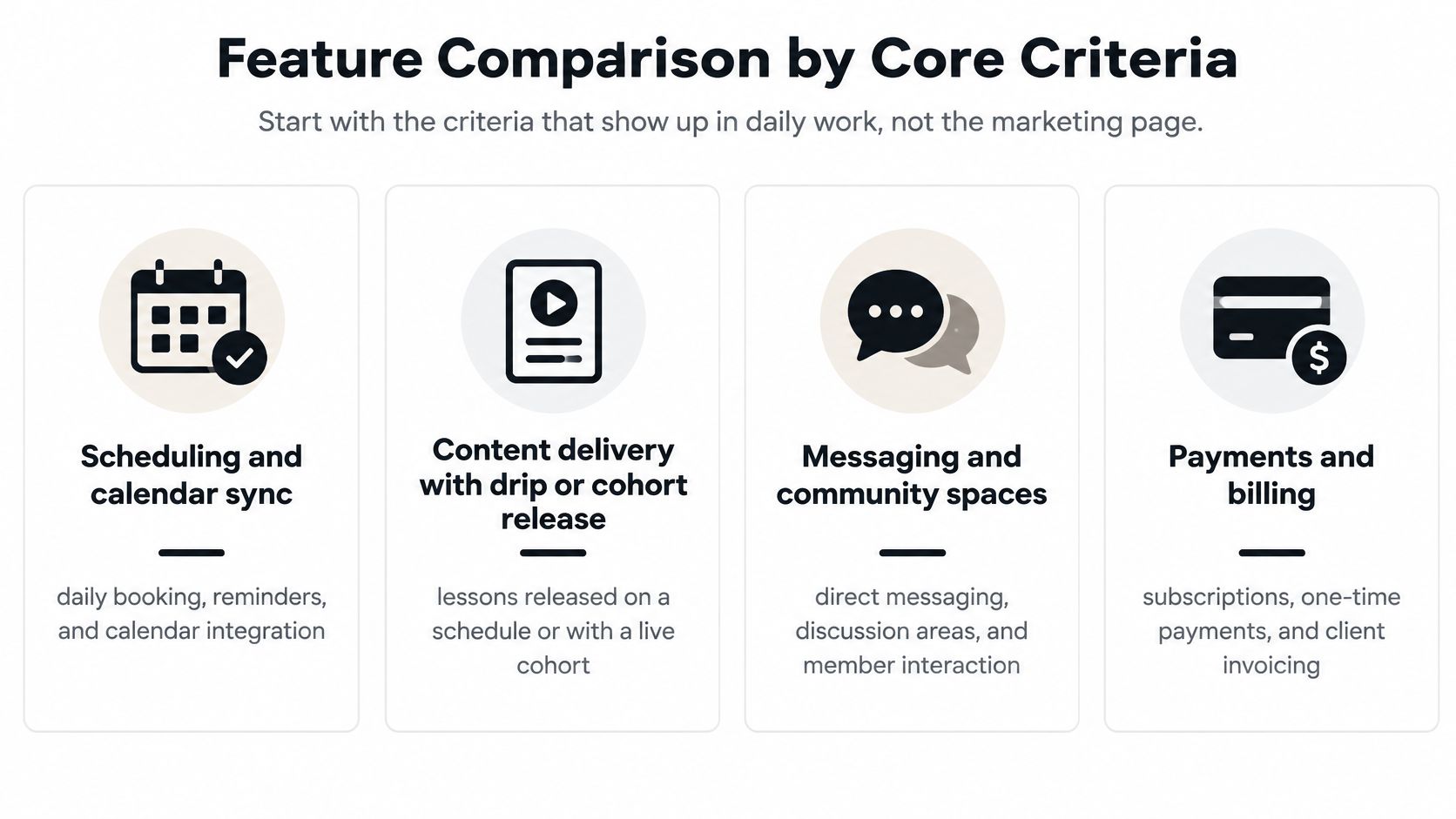
Feature Comparison by Core Criteria
Vendor marketing pages lead with the full feature list. Daily use comes down to a shorter set: booking and calendar sync, content delivery with drip or cohort release, messaging, community spaces, payments and refunds, connections to your email and automation tools, and whether analytics leave the platform in a file you can open in a spreadsheet.
How the Four Types Stack Up
| Platform type | Scheduling | Content delivery | Community | Analytics export |
|---|---|---|---|---|
| All-in-one suite | Built-in booking | Courses and downloads | Forum or chat | CSV exports of enrollments, revenue and member activity |
| Scheduling-first tool | Strong, with calendar sync | Light, files only | Usually none | Session counts and attendance lists, limited to booking data |
| Course-first platform | Basic booking or add-on | Strong, with drip and cohort release | Discussion prompts | Completion and progress reports, typically downloadable as CSV |
| Community-first platform | Event calendar | Light course add-on | Strong, with feeds and groups | Post, comment and engagement exports, thinner on course progress |
An all-in-one suite covers a lot at a competent level and rarely leads on any single row. That trade is worth taking if juggling four logins is what wrecks your week. It is a bad trade if the weak row happens to be the one you touch every day.
A scheduling-first tool wins on bookings and gives ground on everything after that. A course-first platform handles lessons well and makes you bolt booking onto the side. A community-first platform shines when members talk to each other, while its course tools feel added on.
The right platform is the one that fits the workflow you run every week.
The column these comparisons usually skip is the one that decides completion: whether the whole thing loads on a mid-range phone over a patchy connection. A lesson player that buffers, a community feed that pulls three megabytes of images before the first post, or a checkout that times out on mobile data will cost you people who never file a support ticket. They just stop. Test your shortlist on a throttled connection and an older handset before you sign, and check whether the analytics export runs from that same device or needs a desktop.
Real Tools Behind Each Type
To make this concrete, here is how I'd sort some familiar names. Vendors reprice tiers regularly, so build your budget from the plan you'd buy during the trial, not from a screenshot.
- All-in-one suite examples like Kajabi or Circle: Usually a flat monthly tier with email and automation integrations built in or connected. Best if you sell courses and run calls together. Pro, fewer tools to manage. Con, you may pay for marketing features you never use.
- Scheduling-first examples like Paperbell or Satori: Usually a flat monthly plan focused on packages, booking, and payments, with calendar and video links connected. Best for solo one-to-one work. Pro, calendar sync is clean. Con, you won't host a proper video lesson library there.
- Course-first examples like Thinkific or Teachable: Usually a monthly tier, sometimes with sales fees to watch, plus email tool integrations. Best for structured lessons. Pro, drip release is strong. Con, reporting and community can feel thin.
- Community-first examples like Mighty Networks or Circle: Usually a monthly tier based on features or scale, with automation connections for onboarding. Best when peer chat drives results. Pro, members engage in conversation. Con, course tools are often an add-on.
If you're also weighing human-led versus app-led support for clients, this Text Lauren and BetterUp coaching comparison is useful context on how different coaching models present themselves, even though it's a different buying decision from picking your own platform.
Count how many criteria you use each week and weight those first. Watch integrations closely too. Every extra tool adds a login, a sync point, and one more place where a client on a slow connection can get stuck.
This short video is a helpful walkthrough to watch while you score your own shortlist.

Engagement and Completion Features That Move Results
Completion is where platform design stops being theory. People either finish or they drift off.
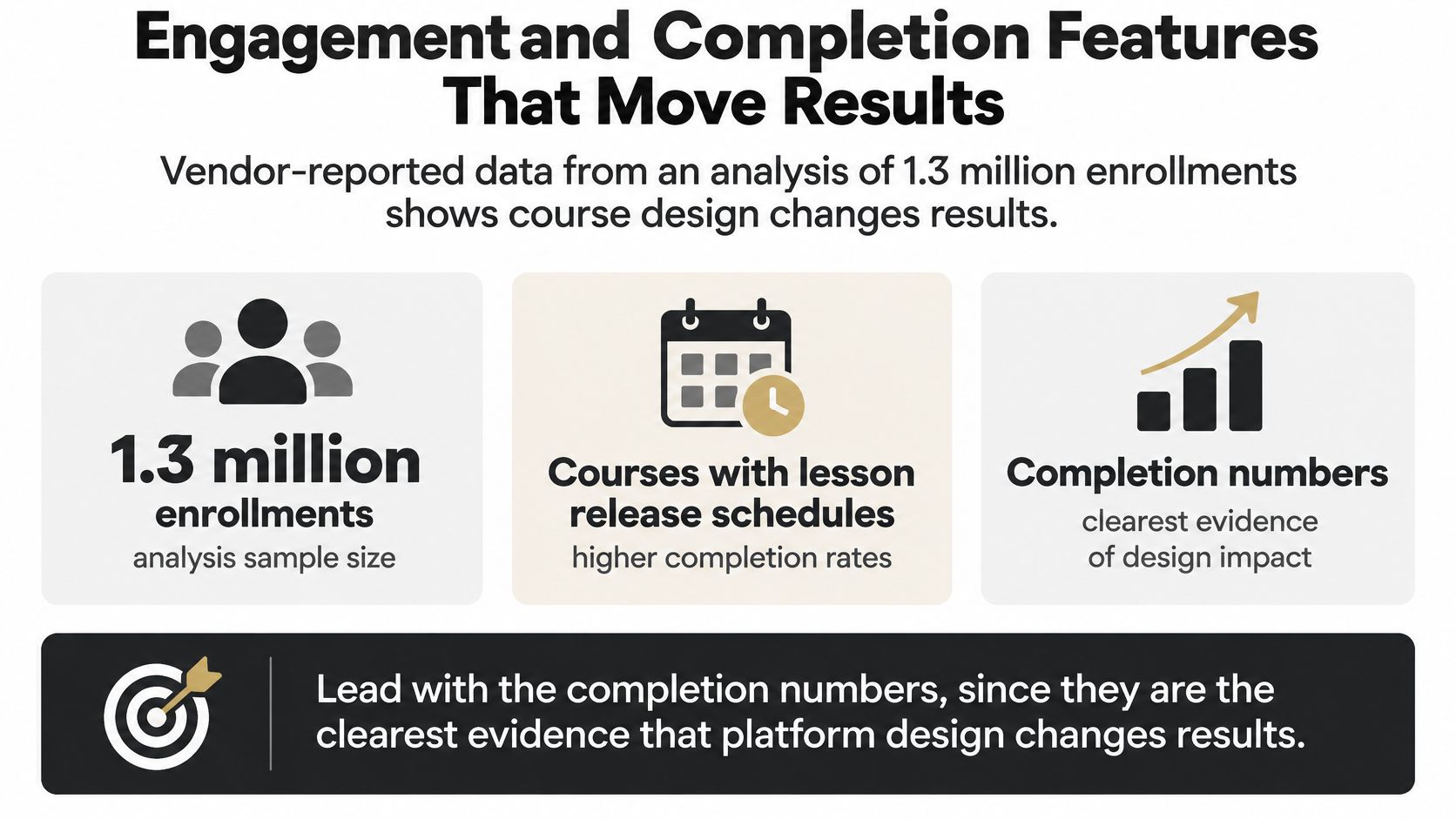
Vendor-reported data in a Ruzuku analysis of 1.3 million enrollments found courses using lesson discussion prompts achieved a 50.9% average completion rate, compared with 37.3% without prompts. That's a 13.6-percentage-point increase.
The same dataset showed scheduled coaching courses reached 77.0% completion, while open-access coaching courses reached 38.5%. I'd treat these as directional benchmarks, not universal proof, because they're vendor-reported. Still, the gap is big enough to take seriously.
Why Scheduling Works So Well
| Course setup | Average completion rate |
|---|---|
| Courses with lesson discussion prompts | 50.9% |
| Courses without discussion prompts | 37.3% |
| Scheduled coaching courses | 77.0% |
| Open-access coaching courses | 38.5% |
Open access sounds generous. In practice, it often means there's no reason to start today. A schedule creates rhythm. A prompt gives people something to say. A cohort gives them someone to say it to.
So when I test online coaching platforms, I check for native discussion prompts on each lesson, scheduled release or drip, cohort controls, automated reminders, and completion analytics broken down by cohort.
Look Past Vanity Metrics
Video views don't tell you much. I want milestone completion, assessment gains, action items done, and time to completion.
Ask whether the platform records logins, lesson progress, action-item completion, and discussion activity as a proper history. Ask whether it can trigger a message when a client goes quiet or misses a milestone. And ask whether you can export that data, not just stare at a dashboard.
Before you trust any aggregate rate a vendor quotes you, run one program and compare completion by cohort yourself. That's your real benchmark.
Pricing Models and the Costs Behind Them
The headline price is rarely the actual price. I learned to read pricing pages like a contract, not an ad.
You'll mostly see flat monthly fees, tiers based on active members or clients, per-seat pricing for teams, transaction fees on sales, and paid add-ons for community, video, or advanced analytics. None of those models is bad on its own. The trouble starts when you don't model what happens as you grow.
Costs That Don't Show on the Pricing Page
- Payment processing fees: These eat margin on every sale, so add them to your yearly total.
- Third-party tools: Video, email, or a separate scheduler can double what you thought you'd pay.
- Migration time: Moving lessons, members, and automations later costs hours, even when the export button works.
- Member churn during a switch: If people can't find their stuff, some won't come back.
I model a full year at three sizes, say 10, 50, and 200 active clients, and compare totals side by side. Our breakdown of learning management system pricing can help you sanity check the LMS end of that math.
Do the Refund Check Before You Pay
The U.S. Federal Trade Commission guidance on vetting a business or coaching opportunity says sellers of covered business opportunities must provide a one-page disclosure document before a customer buys, identifying the seller, disclosing relevant lawsuits, and stating whether a cancellation or refund policy exists including its terms.
I'd ask any platform or coach you buy from for the same clarity, even if your purchase doesn't fall under that exact rule.
There are good reasons to be careful. In a 2013 FTC settlement, most customers paid between $2,000 and $20,000 for coaching and related products, received little in return, and had difficulty obtaining refunds, according to the FTC settlement announcement.
In the Ivy Capital case, 2,004 consumers received more than $4.4 million in refunds after paying for online-business coaching the FTC said was worthless, which was more than 55% of the amount they lost, per the FTC refund announcement.
Another scheme led to 7,583 refund checks totaling more than $2.2 million, with each recipient receiving $295, after promises of substantial home-based internet income, according to the FTC money returned announcement.
If someone promises guaranteed earnings, ask for documented evidence. If they dodge, walk away.
Before you commit, confirm your total yearly cost, what happens to your content if you cancel, whether refunds exist and on what terms, and whether pricing changes after year one.
Accessibility Tests Most Reviews Skip
A platform can look gorgeous in a desktop demo and still fail your real clients. I've stopped trusting demos run on fast office wifi.
Instead, I run a minimum viable access test. You can do this in an afternoon with a phone, a laptop, and a bit of patience.
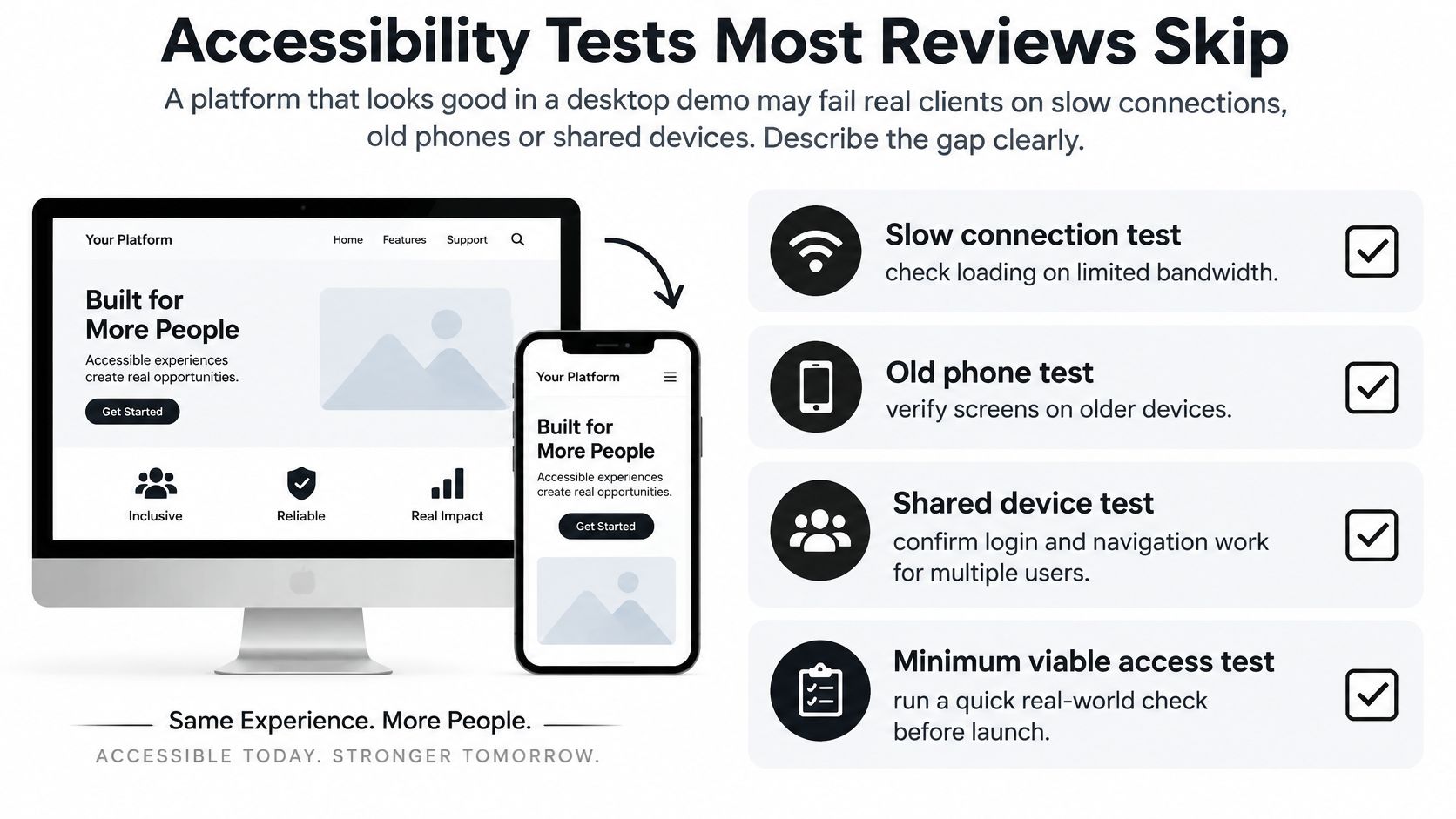
Nine Checks I Run Every Time
- Throttle the connection: Load a lesson on a phone with a slowed connection and time how long video takes to start. Red flag, it spins forever or fails with no message.
- Find the audio option: Check for audio-only or lower-quality video. Red flag, there's only one heavy stream.
- Check captions and transcripts: Every video needs both. Red flag, captions exist on the sales page video but not inside lessons.
- Use only the keyboard: Tab through a lesson and note where focus disappears. Red flag, you can't reach the play button or the reply box.
- Try a screen reader: Run it across sign-in and one lesson. Red flag, buttons read as unlabeled graphics.
- Download something: Save a resource and open it offline. Red flag, downloads are locked inside the app.
- Test async participation: Leave a voice note or delayed reply like a client in another time zone would. Red flag, everything assumes live attendance.
- Check language and reminders: Confirm language support and a backup reminder by email or text when push notifications are blocked. Red flag, reminders only work inside the app.
- Use a shared device: Log in, log out, and confirm the session ends cleanly. Red flag, the next person can see your progress or messages.
If a feature-rich platform fails these tests, it will lose clients. They won't file a bug report. They'll just stop showing up.
For this group, the simpler option often wins. I'd rather have plain pages that load than beautiful pages that don't.
Switching Platforms Without Losing Members
Switching is rarely one export button and a happy afternoon. It usually takes longer than owners expect, so plan for that upfront.
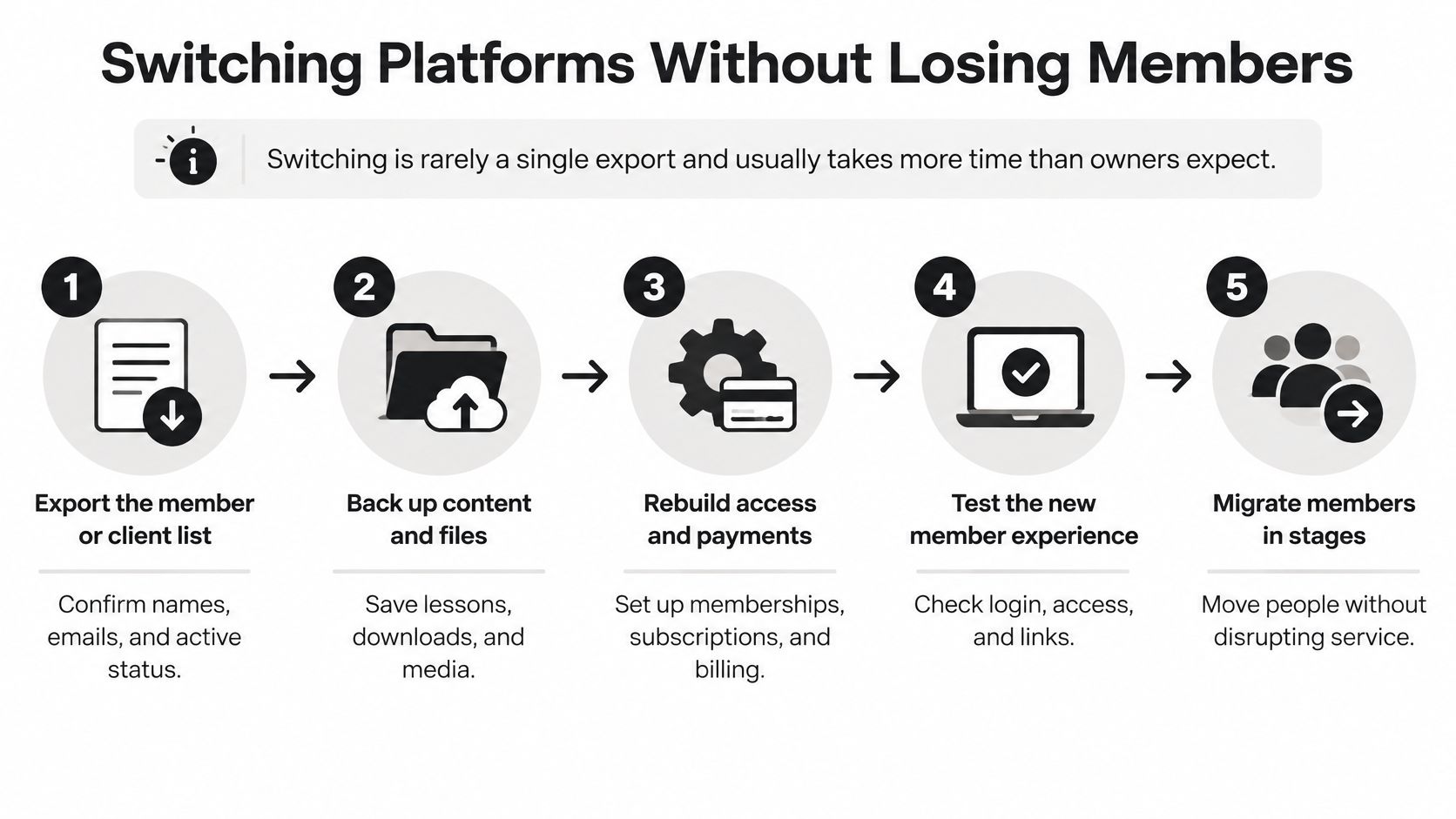
The Order I Follow
- Export your member list first: Confirm you have consent to email people on the new platform, because a list you can't contact isn't much use.
- Save progress records: Export completion data so you know who finished what and nobody has to restart a program they already did.
- Move original files: Shift content in its original formats, rebuild the lessons, then click every link yourself.
- Recreate the rhythm: Set cohort start dates, release schedules, and reminder messages again, since these rarely transfer cleanly.
- Run a small pilot: Invite five people who have a clear reason to give honest feedback and fix what they trip on.
- Announce with a firm date: Tell members what changes, what stays the same, and where to get help on day one.
- Keep the old platform read-only: Leave it open for a set period so people can find old material without panic.
Expect some loss. Comment history, quiz attempts, and automations tied to specific tools are the usual casualties. Tell members about that before they discover it themselves.
If you're auditing your whole setup before a move, a structured tech stack audit helps you list what's connected to what.
The cheapest move is the one you plan before you sign up.
So ask any new vendor about import options and data portability before you commit. If they can't answer clearly, that's your answer.
Choose Your Stack and Run a Two-Week Trial
My verdict is simple. Pick the leanest stack that covers your weekly workflow, then add tools only when a real gap shows up.
More tools feels safer. It usually just means more passwords, more sync errors, and more places for a client to get lost.
| Budget tier | Stack to start with | Best for | Main trade-off |
|---|---|---|---|
| Lean | Scheduling tool with payments, basic video calls and file storage | Solo one-to-one coaches | Limited community and analytics |
| Mid-range | Course-first platform with community add-on and separate scheduler | Small paid cohorts | Two logins to manage |
| Full-featured | All-in-one suite with analytics export and integrations | Growing programs and agencies | Higher monthly cost and longer setup |
| Team or enterprise | Learning management system with SCORM or xAPI, single sign-on and reporting | Corporate training teams | Quote-based pricing and slower rollout |
The lean stack is enough for most solo coaches starting out. Booking, payments, video calls, and a folder for files will carry you further than you think.
Mid-range makes sense when cohorts become your main income. You get proper lessons and community, and you accept the two-login annoyance as the price.
Full-featured suites earn their cost when you need analytics export and integrations to run a growing program without manual spreadsheets. Just budget real setup time.
Team and enterprise stacks are a different purchase. You're buying reporting, single sign-on, and SCORM or xAPI support for a training buyer, and pricing usually comes as a quote.
If that corporate route is on your horizon, we have a guide comparing learning management systems for employee training by team size, pricing, SCORM and xAPI support, and use case, plus a pilot plan. And if memberships are your model, our guide on how to make money with membership sites covers pricing models, recurring revenue tactics, retention strategies, and tech stack picks.
Whichever tier fits, don't buy a yearly plan on demo energy alone. Run a two-week trial with real clients, track completion, run the access test on a slow connection and an older phone, and calculate your cost after fees.
Go back to the setup table at the top, pick your row, and trial the leanest option that fits it this week. Your clients finishing the program is the only feature list that really counts, so start your trial today and let real usage make the decision for you.